返回博客

Image Layer Separation vs. Background Removal

Compare transparent cutouts, foreground-background splits, and multiple image layers using one source, then choose the output your next edit needs.

2026年9月13日Image2Layer TeamImage2Layer Team
Image Layer Separation vs. Background Removal

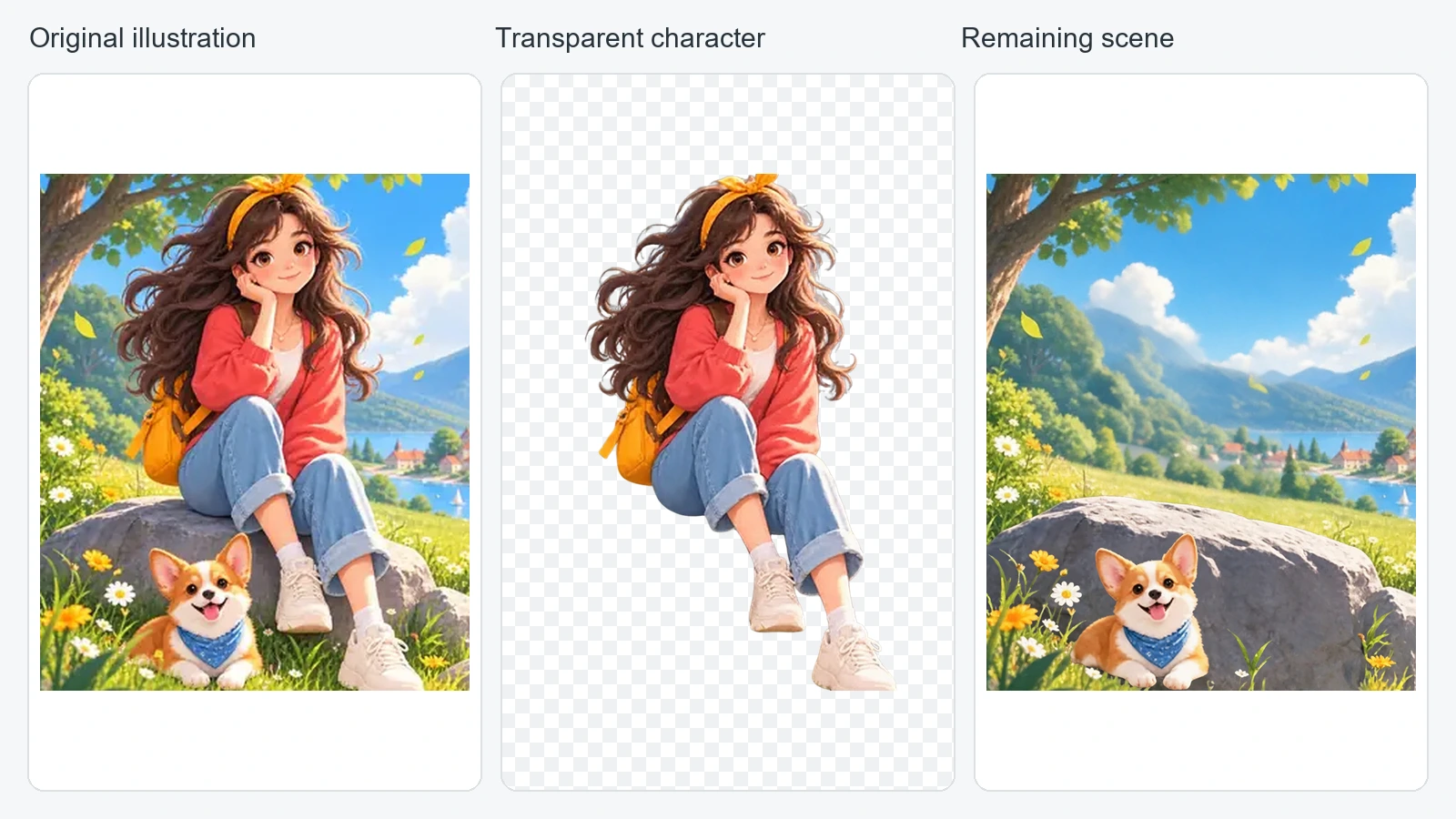
Use background removal when you need a subject on transparency. Use a foreground-background split when you want to keep the subject and its scene separately. Use multi-layer separation when several objects need to move or change independently.

The difference is the editing freedom you need afterward. Downloading a PSD instead of a PNG does not, on its own, create additional separated objects.

In the example above, the chosen subject is the seated character. Her transparent cutout and the remaining scene with the dog are assembled from existing character decomposition output. This illustrates output structures; it is not a benchmark comparing different background-removal engines.

What Does Background Removal Give You?

A typical background-removal workflow isolates a selected subject and makes the surrounding area transparent. That cutout is useful for a sticker, a presentation, a product placement, or a new background.

It usually does not give you the original scene reconstructed behind the subject. Some editing applications preserve the original image and a mask, while a downloaded cutout may contain only the isolated subject. Inspect what the particular tool delivers rather than assuming all tools work identically.

“Subject” also needs a definition. In a product photograph, it could mean one bottle, the bottle and box together, or all the foreground products. A tool that selects the whole group may be unsuitable if you only want the bottle.

For transparent delivery, choose a format that preserves alpha. Adobe's supported image formats guide explains format capabilities. A standard PNG image can preserve transparency, but it does not preserve an editable stack of object layers. JPEG does not preserve transparency.

What Does Image Layer Separation Give You?

Layer separation creates multiple image regions that can be edited independently. Depending on the source and result, these might be a product, packaging, a branch, a pedestal, and background regions.

The output can include transparent PNG assets and a layered PSD. Each layer needs usable pixels, transparency, a position, and an order. A pile of cropped rectangles is not necessarily a useful reconstruction of the scene.

The important test is whether the objects you need are separate and recognizable. If the bottle and branch remain merged, you cannot move the bottle alone just because the file contains several other layers. Conversely, if your only task is to place the bottle on white, a good single cutout may be sufficient.

Compare the Same Image Three Ways

Our source is an illustration of a seated character, a dog, a rock, flowers, and a lakeside landscape. The comparison describes three output structures for that same source, with the complete character treated as the main subject.

WorkflowUseful outputIndependent editingTypical purpose
Background removalTransparent characterThe character as one assetPlace the character elsewhere
Foreground-background splitCharacter plus remaining sceneSubject and sceneKeep both sides of the separation
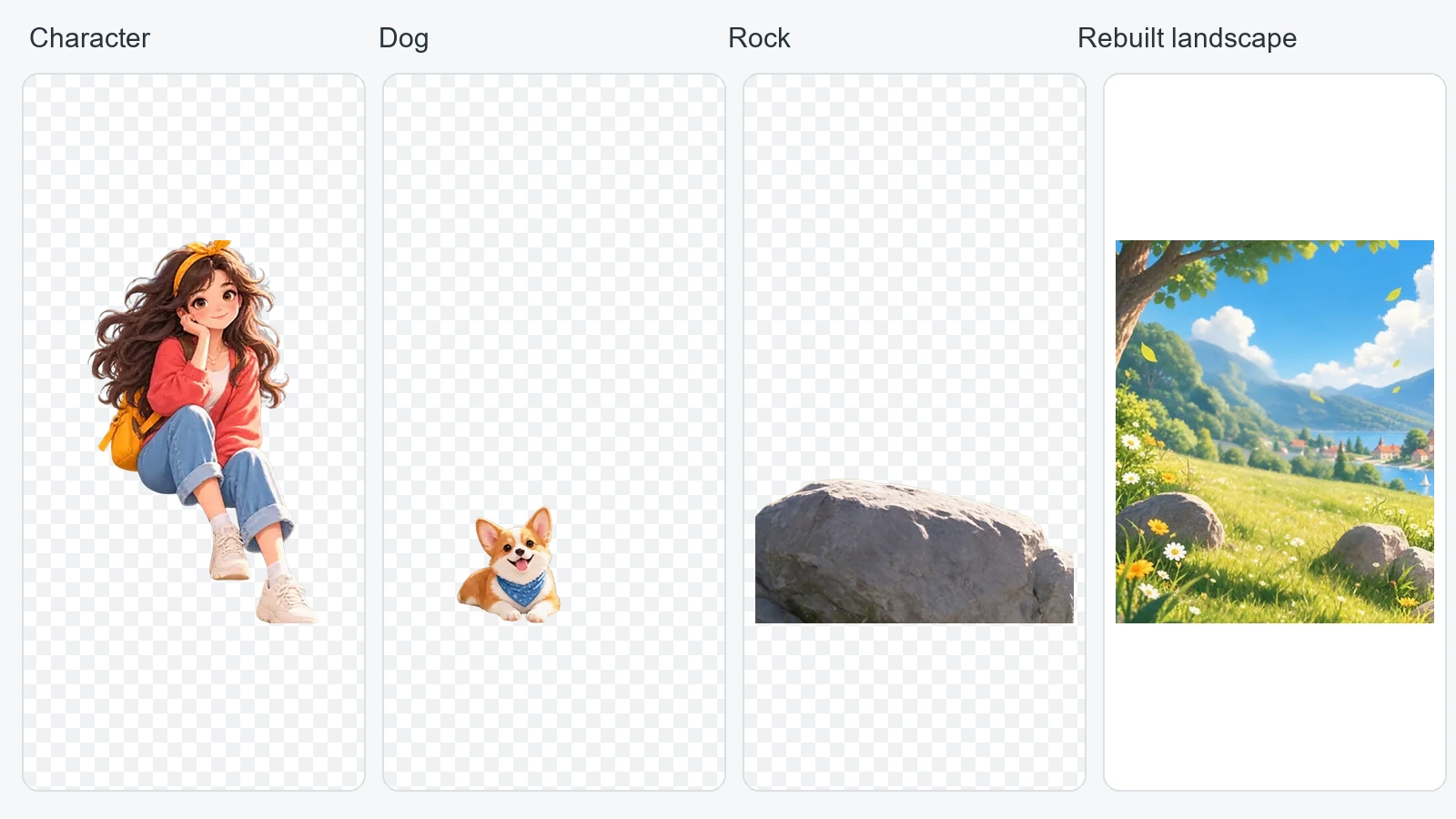
Multi-layer separationObject layers and backgroundSuccessfully separated objectsRearrange a composition

The two-part example groups the remaining scene together. The multi-layer example below keeps several pieces independently accessible. Both are assembled from the same decomposition assets, so they demonstrate structure rather than claim that three different services were tested.

Character, dog, rock, and reconstructed landscape from the same illustration shown as independent layers
Actual character, dog, rock, and base landscape pixels at their canvas positions. The character stays whole, including her hair, outfit, and shoes. Checkerboards indicate transparency; they are not baked into the layer assets.

Which Workflow Should You Choose?

You Need a Cutout for a Listing, Slide, or Sticker

Start with the subject you want to keep. Download a transparent PNG and place it onto the destination background. Inspect the outline, small gaps, and translucent regions before considering the asset finished.

You do not need a PSD just to have a transparent product image. In our Background Splitter, you can inspect the foreground and use the PNG output when that is all your next step requires. This workflow also prepares a background; it should not be mistaken for a separate lightweight remover with identical cost or behavior.

You Want to Keep the Subject and the Background

Choose a foreground-background split when the scene itself matters. You may want to reposition a subject while keeping the surrounding room or product setting available.

The background behind the subject must be filled if you want a complete scene. Review that fill carefully. Keeping two separate outputs gives you flexibility, but it does not guarantee that the hidden surface has been reconstructed correctly.

You Need to Rearrange Several Objects

Choose multi-layer separation when the bottle, packaging, foliage, or other props need separate edits. Describe which pieces must stay together, such as a bottle and its label, and which must be independent.

Begin with a manageable number of layers. Extra fragments can make a simple edit harder, and more layers do not guarantee better detail. See our layer-count guide for that decision.

If the next step is Photoshop editing, Image to PSD is the relevant entry. Check the actual file, not just a flattened preview.

What Happens Behind the Removed Subject?

The pixels behind an opaque object are absent from the flat source. A cutout does not need to reconstruct them because it only keeps the foreground. A complete background layer needs a plausible replacement for that hidden area.

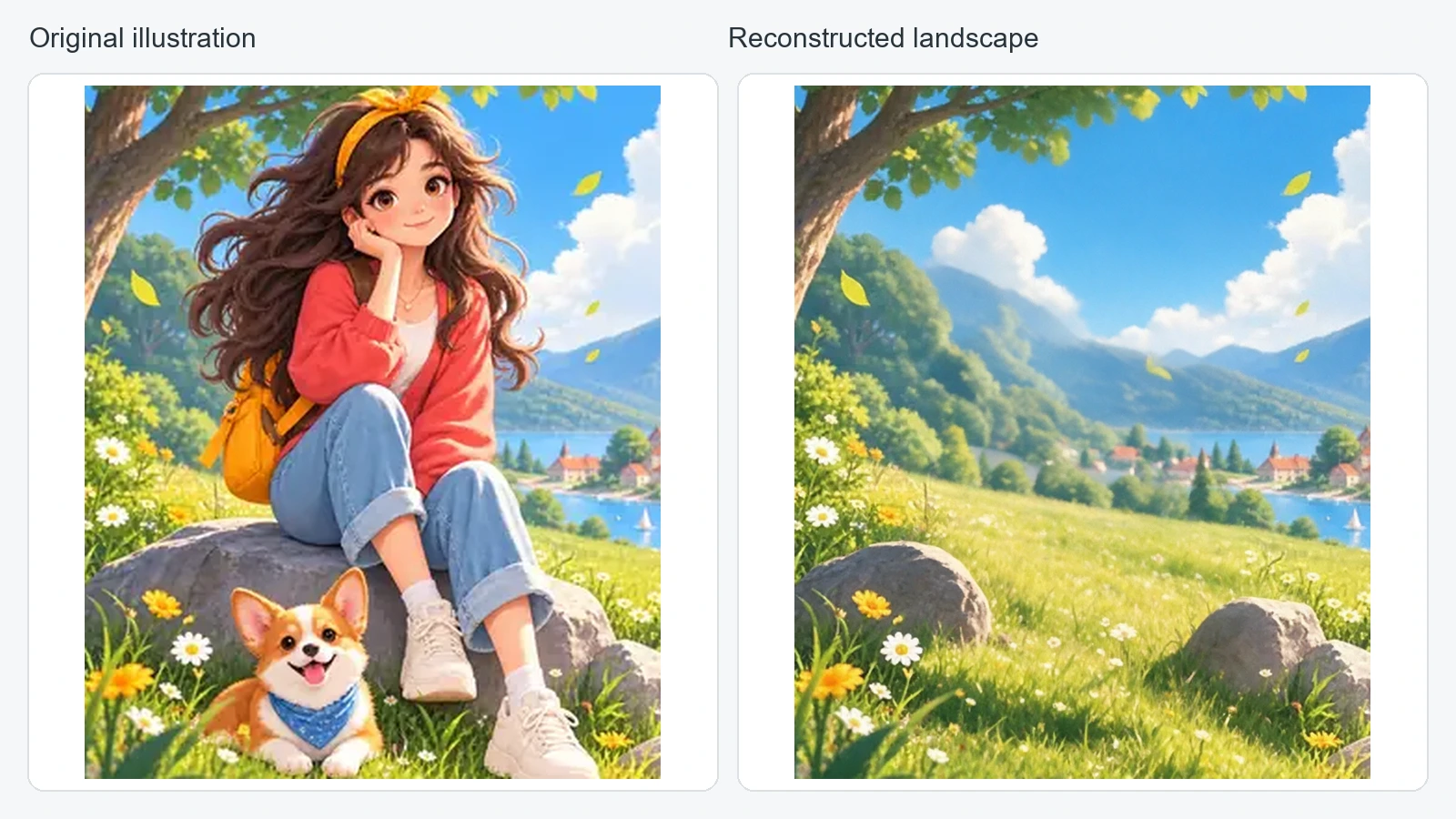
Our character example shows this distinction. The reconstructed landscape estimates the area behind the character, dog, and large rock. Compare the foreground rocks and grass: these are plausible replacements, not recovered details. Moving the character would also change how she sits on the rock, so a separate layer does not automatically make a new pose or arrangement convincing.

Original seated character and dog illustration beside the actual reconstructed landscape with the main foreground elements removed
Original illustration and the returned base landscape from the same decomposition run. The foreground differs because covered regions are estimated; this is not a pixel-exact recovery of the original scene.

Repeated textures, transparent products, hair, and overlapping objects deserve extra attention. Check recognizable details such as labels and faces against the original. If an output changes those details, do not treat it as a faithful extraction merely because it has transparency.

Choose the Format After Choosing the Edit

The workflow determines what is separated. The file format determines how you carry the result into the next tool.

  • PNG: useful for an individual transparent subject or layer.
  • ZIP: collects separate assets in one download; it is an archive, not an editable image format.
  • PSD: keeps a layer stack, positions, and transparency together for a compatible editor.

A PSD containing one flattened picture is valid, but it cannot provide independent objects that were never separated. A folder of PNGs can provide independent objects even without a PSD, although you need to preserve their placement when rebuilding the scene.

Frequently Asked Questions

Is a Transparent PNG a Layered Image?

It can represent one layer, but it is not a Photoshop-style editable layer stack. A bottle and its label can remain flattened together inside a transparent PNG.

Does Layer Separation Also Remove the Background?

It can produce an isolated foreground, but its broader purpose is to create independent parts. Check whether the output includes the foreground you need, a completed background, and any additional objects.

Will a Two-Layer Split Separate Clothing and Hair?

A foreground-background split normally keeps the subject together. Separate clothing, hair, or smaller character parts require a more detailed separation, and the source may not support clean boundaries.

Which One Is Better?

Choose the least complicated output that supports your edit. Use a transparent subject for a cutout, a two-part split when the background matters, and multiple layers when several objects must remain independent.

For the next step, separate a subject and background, or read how to turn a flat image into a layered PSD before starting a multi-object editing workflow.

用自己的图片试试 Image2Layer

上传 JPG、PNG 或 WebP 图片,导出可编辑图层、透明 PNG 素材或分层 PSD。

打开 Image2Layer