
01
Upload an image with a background
Start with a clear JPG, PNG or WebP up to 24 MB, at least 512 × 512 pixels. Add optional notes to describe the subject you want to separate.
AI FOREGROUND & BACKGROUND SEPARATION
Split your image into a transparent foreground and an AI-reconstructed background. Download the cutout as a PNG, keep both images, or continue editing with a layered PSD.
Image with a background
Upload Image
JPG, PNG, or WebP up to 24MB.
Sexual or explicit content isn't allowed. Images and results that contain it are blocked automatically.
8 credits per layer.


Subject and background · 2 layers
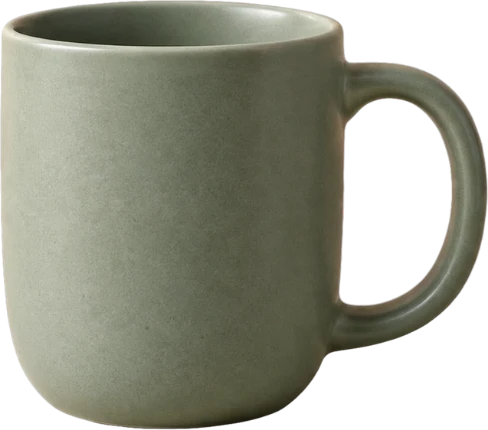
Real result: the mug on its own transparent layer, and the table rebuilt by AI where it stood.
One subject works best. Preview both outputs, then download only what you need.
A SIMPLE WORKFLOW
Upload once, review both parts, and choose your download. No Photoshop file required.
Start with a clear JPG, PNG or WebP up to 24 MB, at least 512 × 512 pixels. Add optional notes to describe the subject you want to separate.
A run takes 60–120 seconds. Inspect the transparent subject and the reconstructed scene. Check fine edges and the area previously covered by the subject.
Choose a transparent PNG for your cutout, a background PNG, both in a ZIP, or an optional layered PSD — each near 0.4 MP.
TWO USEFUL OUTPUTS
Explore actual separation results from our original examples. The source stays alongside both outputs so you can compare the details.

The starting image, with subject and scene together.
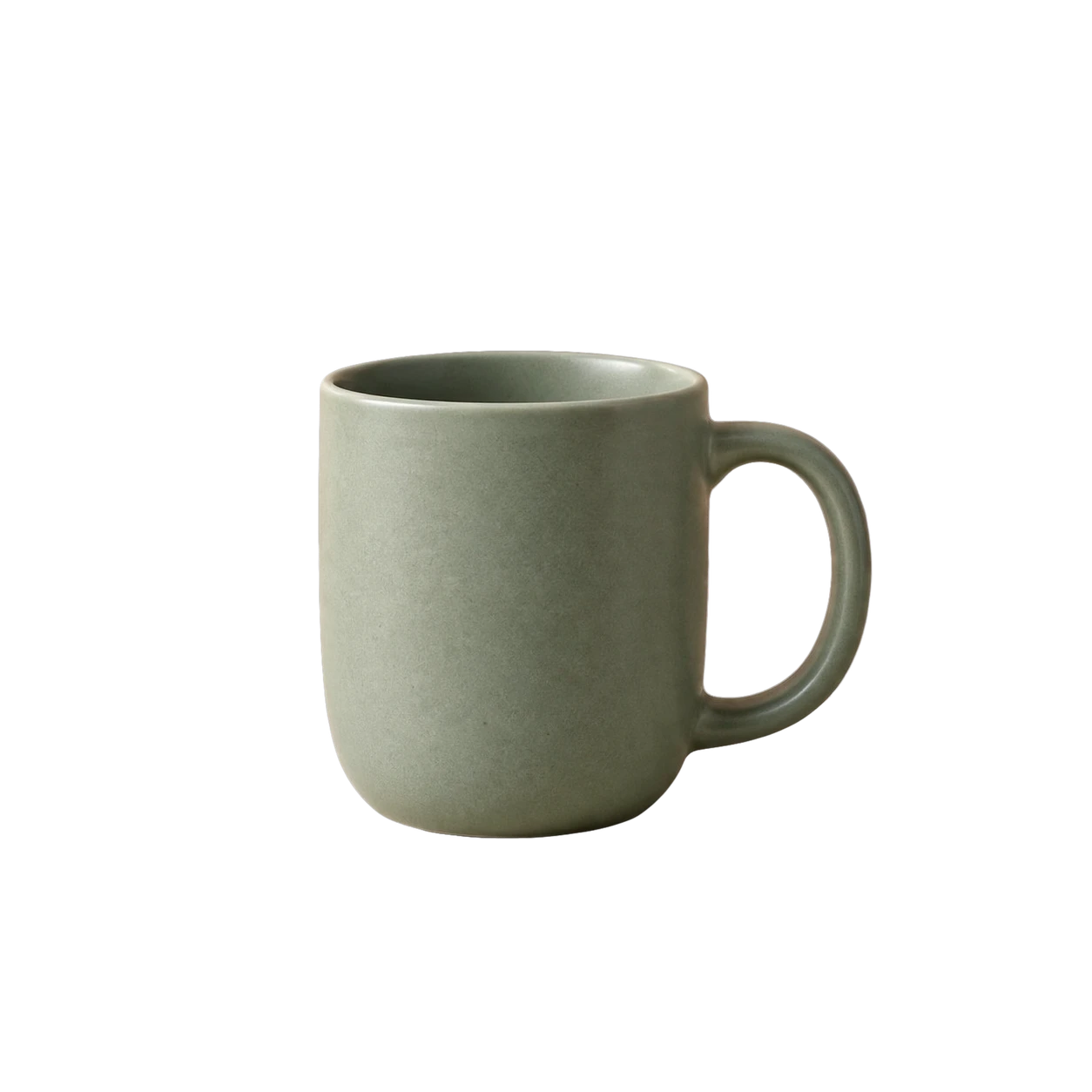
The subject on transparency, ready to download as a PNG.

The scene with the subject removed and its covered area estimated by AI.
BACKGROUND RECONSTRUCTION
Compare your original image with the reconstructed scene. AI estimates the details hidden behind your subject so you can work with the background separately.
Drag anywhere on the image to compare. You can also focus the image and use the arrow keys.
CHOOSE THE OUTPUT YOU NEED
If you only need a cutout, download the transparent PNG. Splitting also gives you a separate background to work with.
| Your task | Basic background removal | Background Splitter |
|---|---|---|
| Isolate the subject | Transparent foreground | Transparent foreground PNG |
| Reuse the scene | Not part of the basic cutout output | AI-reconstructed background PNG |
| Keep both parts | Depends on the tool | Both PNGs in one ZIP |
| Continue layered editing | Depends on the tool | Optional two-layer PSD |
This compares workflows, not every feature offered by other tools. Both outputs are processed even if you only download the cutout.
WORK WITH EACH PART
Keep a subject. Reuse a scene. Take two independent image assets into the editing workflow you already use.
Take the product cutout into your editor for a new composition. Keep the reconstructed surface as a separate design asset.
Keep the person as one foreground asset. Inspect hair, clothing and accessories before combining the cutout with another scene in your editor.
Use the reconstructed scene in a poster or web layout, then place the foreground where your design needs it. Final layout work happens in your editor.
YOUR FILES, YOUR CHOICE
Transparent PNG comes first. Choose a background image or layered PSD only when you need it.
The direct download for background removal. Keep the isolated subject with its transparent surroundings.
Save the scene without the subject. Inspect the generated area before incorporating it into a new design.
Continue editing with the foreground above the reconstructed background. Hide the foreground to inspect the scene underneath.
Need both PNG files? Download Both (ZIP) keeps them together. Downloads reuse your completed result.
BEFORE YOU SPLIT
Get a transparent cutout and a reconstructed scene. Download the parts that fit your next edit.