
Comes through
- Top-level layers, with their names and order
- Every artboard, as its own PSD
- Colors, gradients and transparency, exactly as they look
- The real size at your DPI: an A4 artboard at 300 DPI is 2480 × 3508 px
ILLUSTRATOR TO PHOTOSHOP
Convert Adobe Illustrator .ai files to Photoshop PSD in your browser, without Illustrator. Top-level layers become PSD layers, every artboard becomes its own PSD, and you choose the resolution and a transparent or white background. Free, no sign-up, no upload.
No file at hand? Try a sample:
Each PSD layer is a pixel layer: shapes and text look the same, but they are no longer editable vectors or type. Files are opened in your browser and never uploaded.
Each top-level layer of your Illustrator file is drawn on its own transparent PSD layer, with the same name and in the same order.
 Logo
Logo Headline
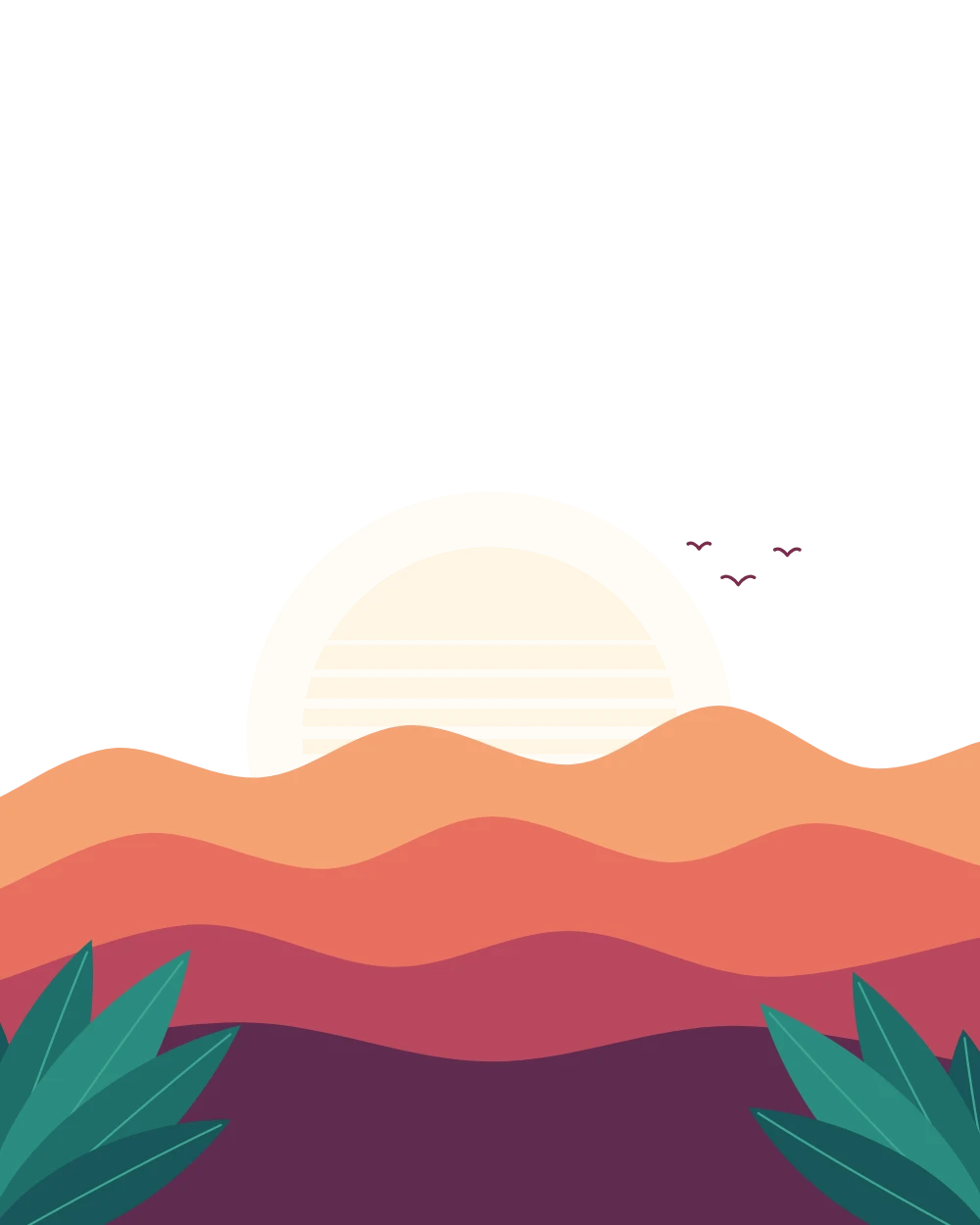 Illustration
 Background
Photoshop layers
The sample poster: 4 Illustrator layers in, 4 Photoshop layers out.
Three steps in your browser. Most files are ready in a few seconds.
Drop, choose or paste an Adobe Illustrator .ai file (a PDF works too). It opens on your device, with its artboards and layers listed.
Keep the Illustrator layers as separate PSD layers or flatten each artboard, then pick 72, 150, 300 or 600 DPI and a transparent or white background.
Download a layered PSD for each artboard, or all of them in one ZIP, and open them in Photoshop, Photopea or GIMP.
Photoshop works in pixels, so your artwork is drawn at the resolution you choose. Here is what comes through and what changes.
Download the sample Illustrator poster, convert it above, and compare the layers with the PSD we made from it.
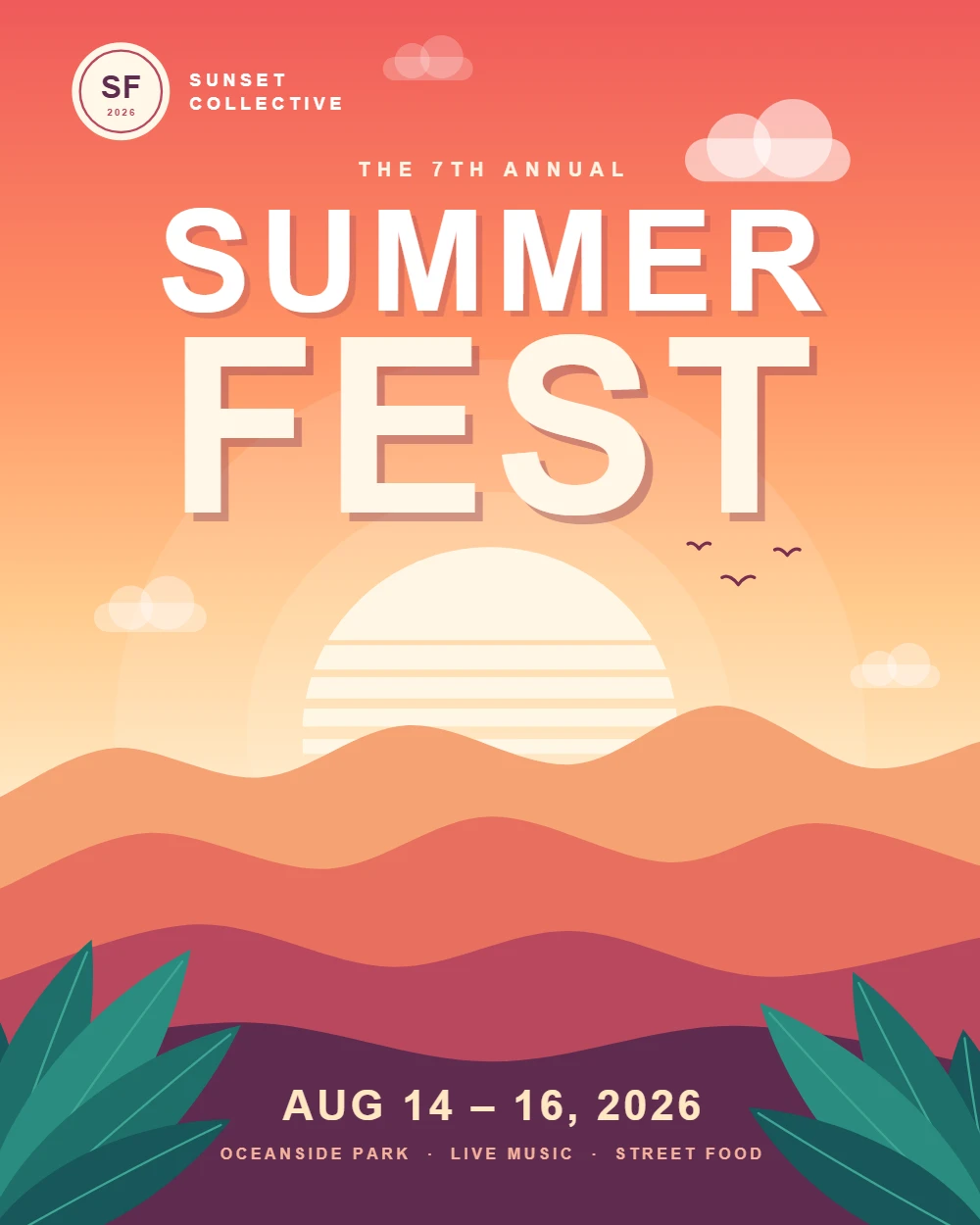
Background, illustration, headline and logo sit on separate layers. Convert it to see each one arrive as its own named PSD layer.
The sample is a PDF-compatible .ai file, like the ones Illustrator saves by default.
Five things to know before you convert.
An .ai file holds a PDF copy of the artwork only when it was saved with Create PDF Compatible File turned on, which is Illustrator's default. Files saved without it, and very old .ai or EPS files, hold only Illustrator data that a browser cannot read. Re-save them in Illustrator with that option on, or export a PDF.
Illustrator stores its top-level layers in the PDF part of the file, and each one becomes a PSD layer. Sublayers, groups and objects inside a layer are merged into it, so put the parts you want separate on their own top-level layers before saving.
72 DPI suits screens and mockups, 150 DPI covers most web work, and 300 DPI is the standard for print. A higher DPI gives sharper edges and bigger files; very large artboards are reduced to stay under 50 megapixels.
Transparent keeps empty areas clear, which is what you want for logos and assets you place on other designs. White adds a white bottom layer, like the artboard you see in Illustrator.
In Illustrator, File > Export > Export As > Photoshop (PSD) with Write Layers turned on does the same job and can keep some text editable. Use this converter when Illustrator is not installed, when you are on another computer or a phone, or when you just need a layered PSD quickly.
Yes. There is no sign-up, no credit charge, no watermark and no daily limit. Your files are converted in your browser and never uploaded.
Drop the .ai file into the converter above, choose whether to keep the layers, pick the resolution and background, and press Convert. You need no Illustrator, no Photoshop and no account.
Yes. Each top-level Illustrator layer becomes a separate, named PSD layer in the same order. Sublayers and groups are merged into their top-level layer, and a file without layers gives one layer per artboard.
No. Photoshop is pixel based, so shapes and text are drawn as pixels at the resolution you choose. They look the same, but text cannot be retyped. Keep the .ai file for vector edits.
It was most likely saved without Create PDF Compatible File, so it contains no PDF data a browser can read. Open it in Illustrator, choose Save As with that option turned on, or export a PDF, and convert that instead.
Each artboard becomes its own page, and each page its own PSD. Select the ones you need, then download them one by one or together in a ZIP.
EPS files cannot be read in a browser, so export them as PDF from Illustrator first. For an SVG, use our SVG to PNG converter, then turn the PNG into a PSD with PNG to PSD.
Yes. The PSD opens in Photoshop, Photopea, GIMP, Affinity Photo and our free PSD Viewer, with every layer listed.
Files can be up to 200 MB with up to 100 artboards or pages. Each one is drawn at up to 50 megapixels, about A3 at 300 DPI; larger ones are reduced automatically.
Need layers from a flat image?
These PSD tools are free and stay in your browser. When you only have a flat picture, our AI tools separate it into transparent layers and build a layered PSD. The AI tools run on our servers and use credits.