
OriginalNew background
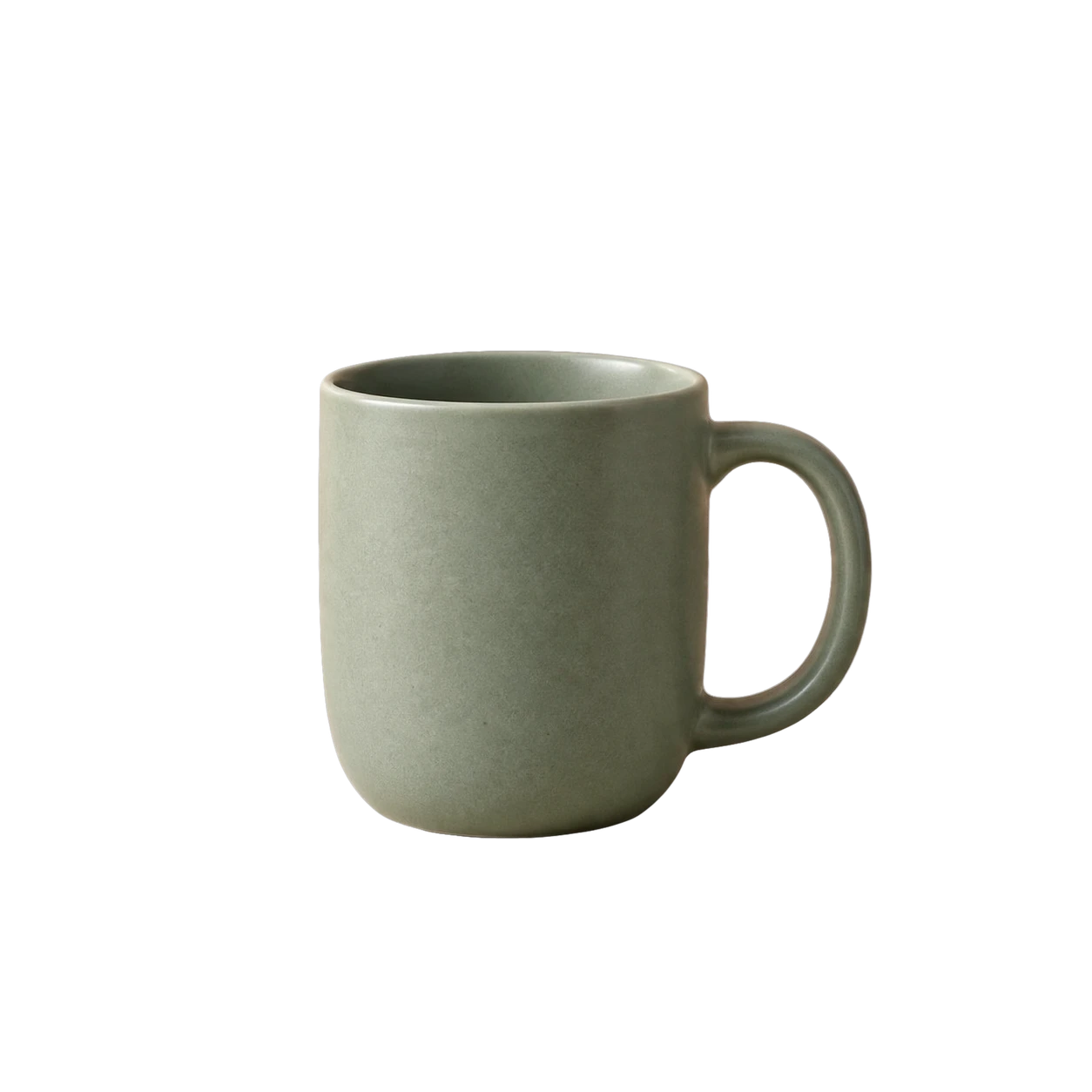
A ceramic mug in a sunlit studio
Give an everyday product photo a warmer, more editorial setting.
Background prompt A cream studio with a sculptural arch, soft sunlight and delicate leaf shadows.
A NEW SETTING. THE SAME SUBJECT.
Replace your photo background with an AI-generated scene, your own image, or a solid color. Keep the focus on your subject.
Upload a photo to create your own background. Examples on this page are illustrative.
Downloads are free · Original subject pixels with extracted edges
BACKGROUND CHANGER SHOWCASE
From a quieter product setting to a brighter portrait. Explore two ideas for a fresh background.
Give an everyday product photo a warmer, more editorial setting.
Background prompt A cream studio with a sculptural arch, soft sunlight and delicate leaf shadows.
Give a casual portrait a clean, professional office setting.
Background prompt A modern office with tall windows, soft daylight and subtle greenery.
AI-generated illustrative concepts · Not actual tool results
YOUR BACKGROUND, YOUR CHOICE
Start with an idea, a picture, or a single color.
Describe a sunlit studio, a quiet office or a natural outdoor setting. Give your photo a new sense of place.
Bring a specific location or branded backdrop. Choose the image that fits your project.
Try a neutral backdrop or a color from your palette for a simpler, more focused composition.
FROM PHOTO TO FRESH START
Start with a clear product, portrait or object.
Describe a scene, upload an image or select a color.
Inspect the edges and save your finished image.
A BETTER FIT FOR YOUR NEXT PROJECT
Find a setting that feels right for your next project.
A different scene, or separate assets? Choose the workflow for your next step.
Replace the old setting with a new one and get a finished image.
Change your background
Get a transparent subject and an AI-reconstructed version of the old background.
Open Background SplitterA FEW THINGS TO KNOW
Upload your photo, choose an AI scene, your own background image or a solid color, then apply it. Subject extraction costs 10 credits and each AI scene costs 10 credits. Reusing an extracted subject for colors and uploaded backgrounds is free.
The studio and portrait examples were generated with AI to illustrate the proposed experience. They are not processed customer images.
Yes. Select Upload Background, choose a JPG, PNG or WebP image, adjust its crop and apply it.
Download your finished image as PNG or JPG. Images are processed at up to 1600 pixels on the longest side. Downloads do not use credits.
Fine hair, transparent objects and reflections need careful edge checks. Matching lighting and natural contact shadows can also require further refinement.
MAKE ROOM FOR SOMETHING NEW
A new scene starts with your photo.
Explore the Background Changer