
Add your JPG or JPEG
Upload a JPG up to 24 MB, at least 512 × 512 pixels — product shots, posters, portraits, and screenshots all work.
Free JPG to PSD converter
Upload a JPG or JPEG and create a Photoshop-ready PSD with organized layers for subjects, logos, text-like graphics, shadows, and backgrounds.
Upload Image
0/1Upload Image
JPG, JPEG, PNG, or WebP up to 24MB. Clear JPG product shots, posters, portraits, and screenshots work best.
Sexual or explicit content isn't allowed. Images and results that contain it are blocked automatically.
Choose how many editable visual groups AI should create first. Auto stays within 10 layers — more layers take longer to separate. You can split mixed layers again after reviewing the result.
8 credits per layer.
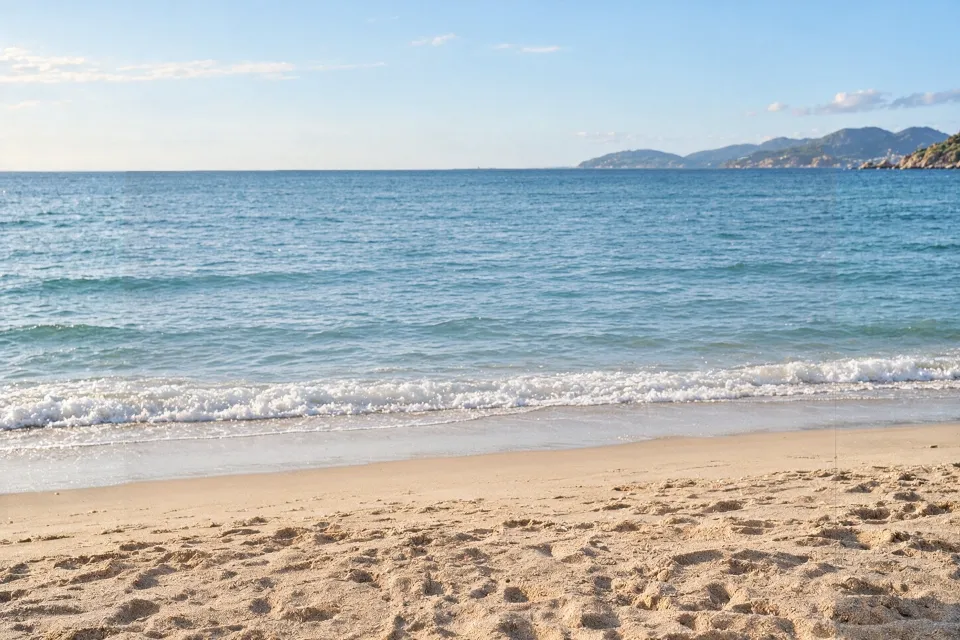
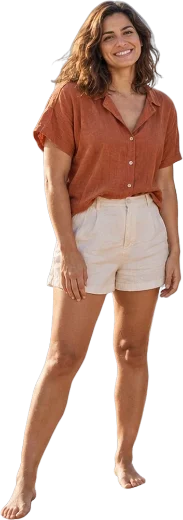
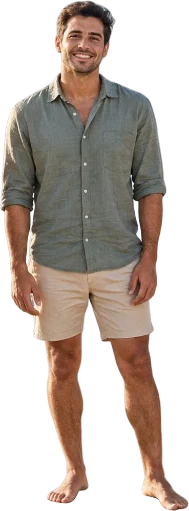
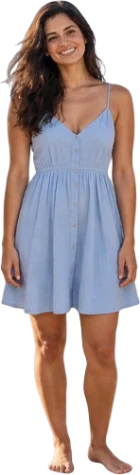
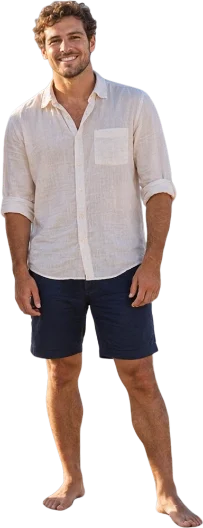
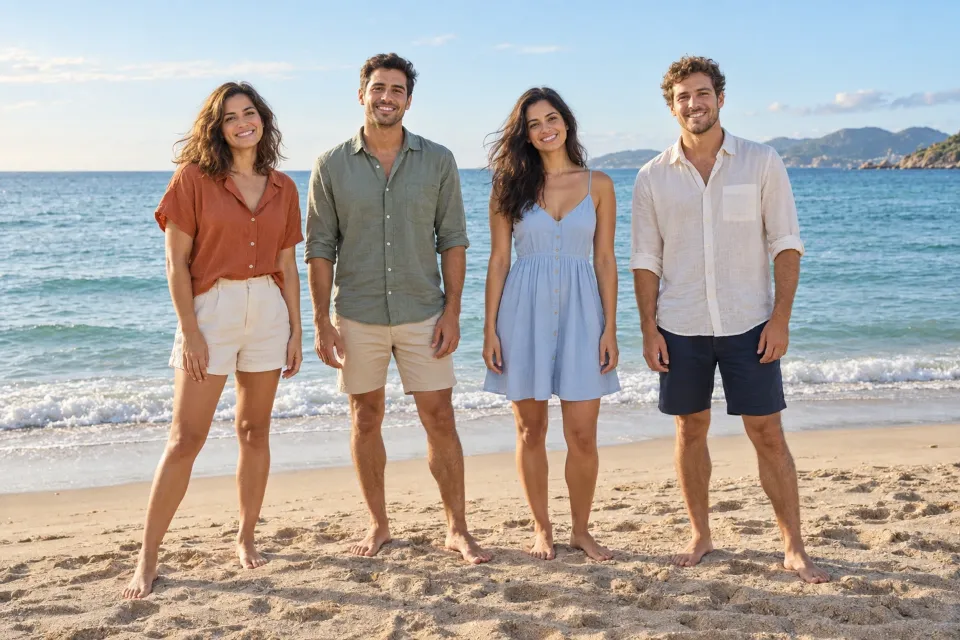
Beach photo · 5 layers
Real result: 4 people and an AI-reconstructed background, each on its own layer.
JPG to PSD workflow
Start with your JPEG source image, add optional separation notes, and download a PSD stack in 60–120 seconds.
Upload a JPG up to 24 MB, at least 512 × 512 pixels — product shots, posters, portraits, and screenshots all work.
Choose Auto or a layer count of up to 10, then note the areas that should become editable.
Download raster layers at your image's resolution, up to about 4 MP, ready for Photoshop, Photopea, GIMP, or Affinity Photo.
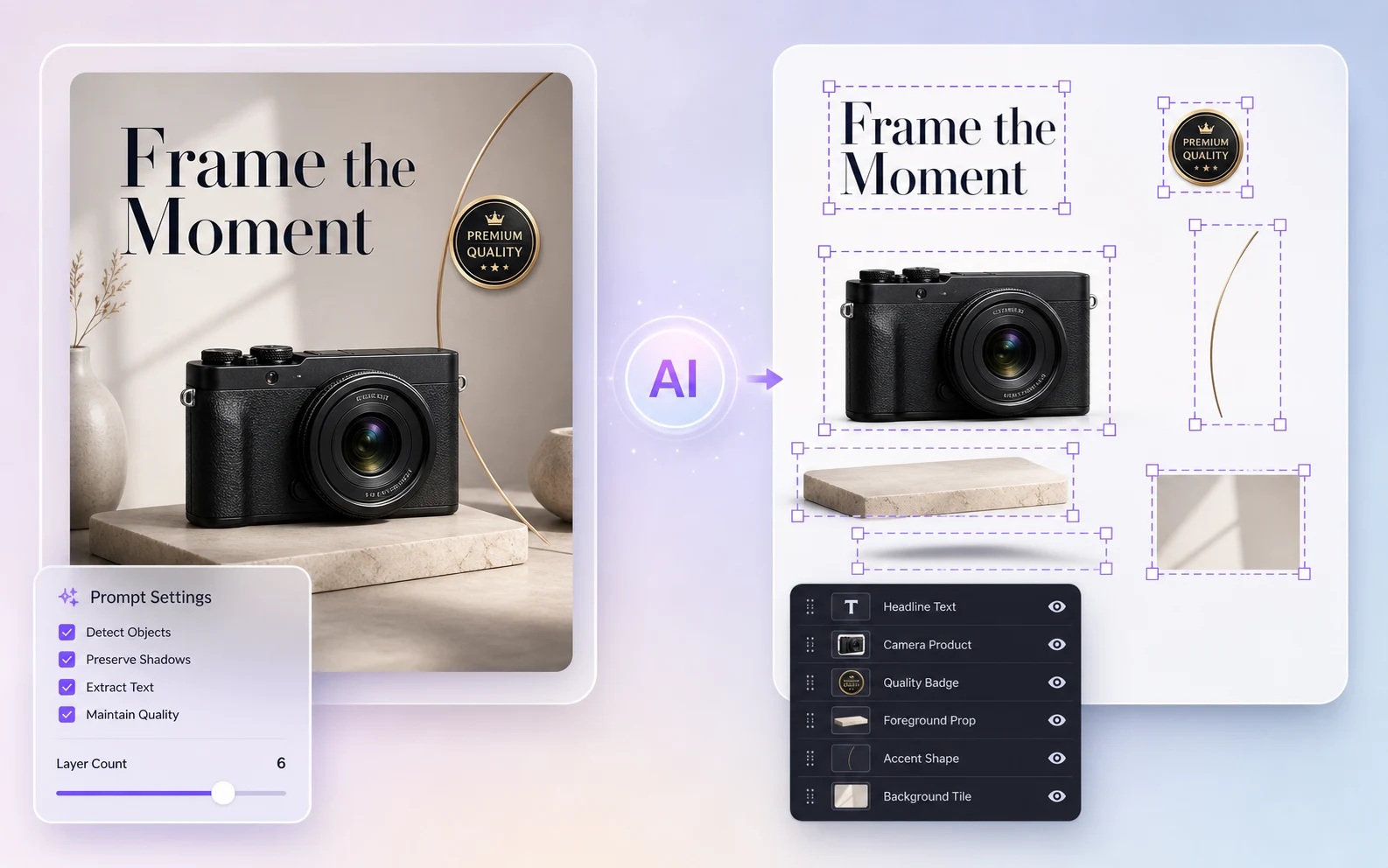
Layered JPG to PSD output
Image2Layer analyzes a flattened JPEG and rebuilds PSD-ready regions, giving you separate raster layers for visible subjects, logo-like details, shadows, accent graphics, and reconstructed background areas.
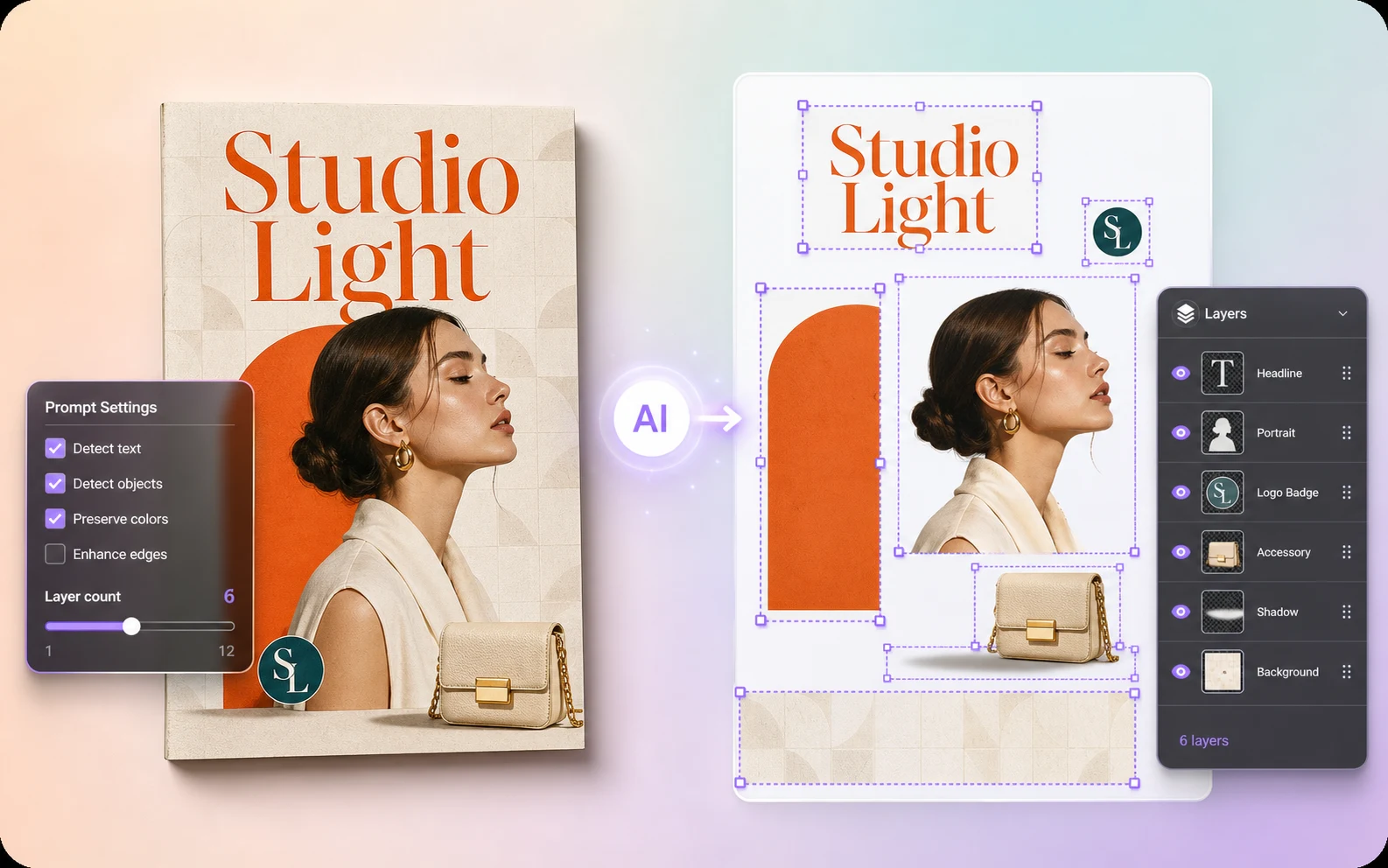
Control your JPG to PSD split
A short separation note gives the JPG to PSD workflow context: which subject matters, which logo or text-like region should stay separate, and how detailed the final PSD layer stack should be.
FAQ