Canva to PSD converter

Canva to PSD: Turn Design Exports into Editable Layers

Export your Canva design as a PNG or JPG, then upload it here. Separate visible elements into raster layers and download a PSD for further editing in Photoshop.

Upload PNG, JPG or WebP exportsSeparate raster layersContinue editing in Photoshop

Upload Image

0/1

Upload Image

Upload an exported PNG, JPG or WebP · Up to 24 MB · At least 262,144 pixels

Auto
Up to 10 layers

Choose how many editable visual groups AI should create first. Auto stays within 10 layers — more layers take longer to separate. You can split mixed layers again after reviewing the result.

Sample:

Each generation uses 20 credits.

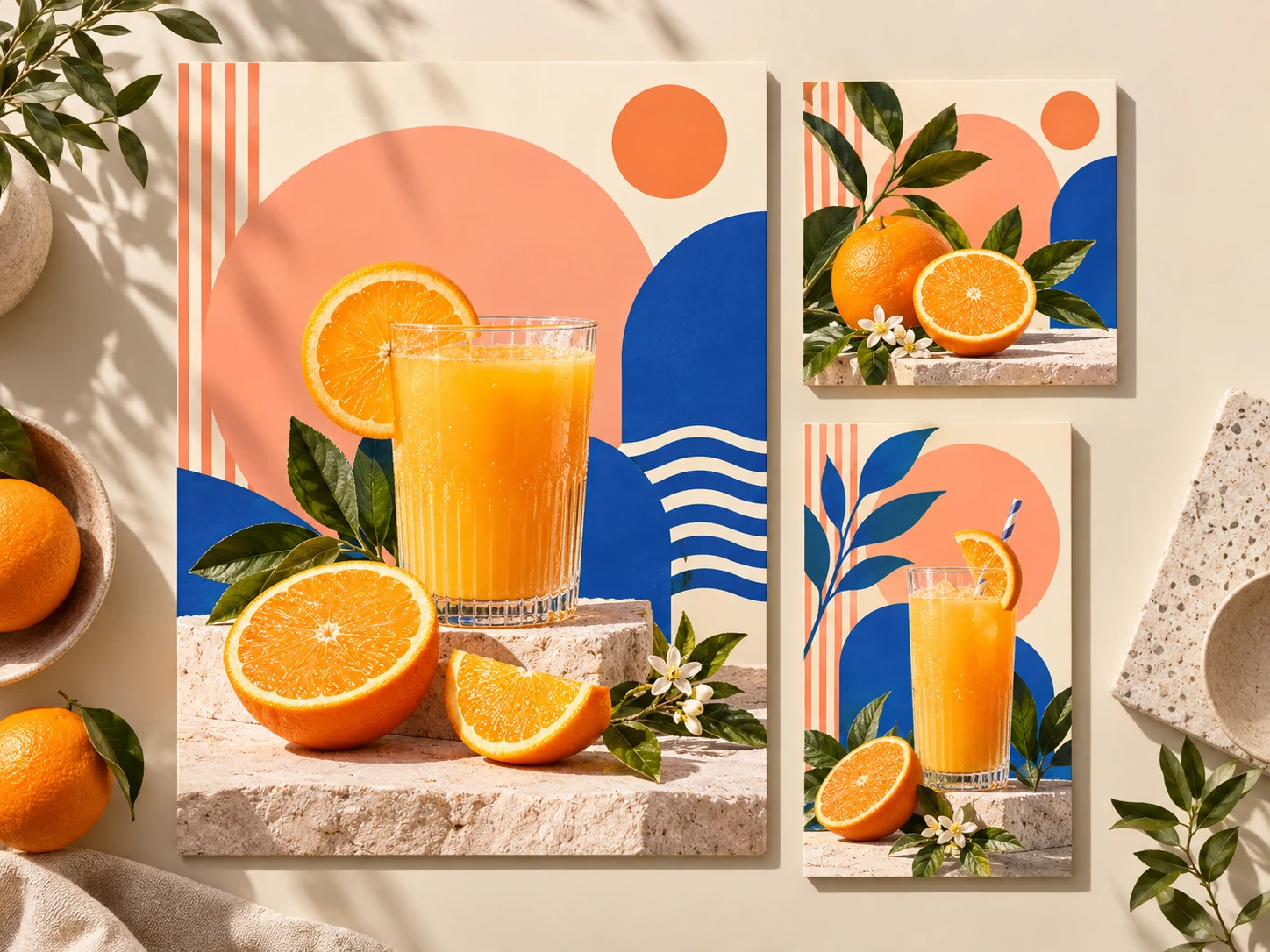
Orange beverage poster with colorful geometric decorations

From social design to PSD

Example: Illustrative concept: reuse a poster’s main visual and decorative elements.

How to Convert Canva to PSD

Export one design page, separate its visible elements, then take the result into Photoshop.

01

Export a Canva page as PNG

Download the page you want to work on as a PNG or JPG. Start with a clear export rather than a small screenshot.

02

Describe and separate the elements

Upload your export, name the parts you need, and generate layers using the credits shown in the workspace.

03

Review and download the PSD

Inspect the layer previews, then download a layered PSD to refine in Photoshop.

A LOOK INSIDE RASTER LAYERS

See the Layer Separation Used by Canva to PSD

Select the product or background to see how separate raster layers work before trying your own design export.
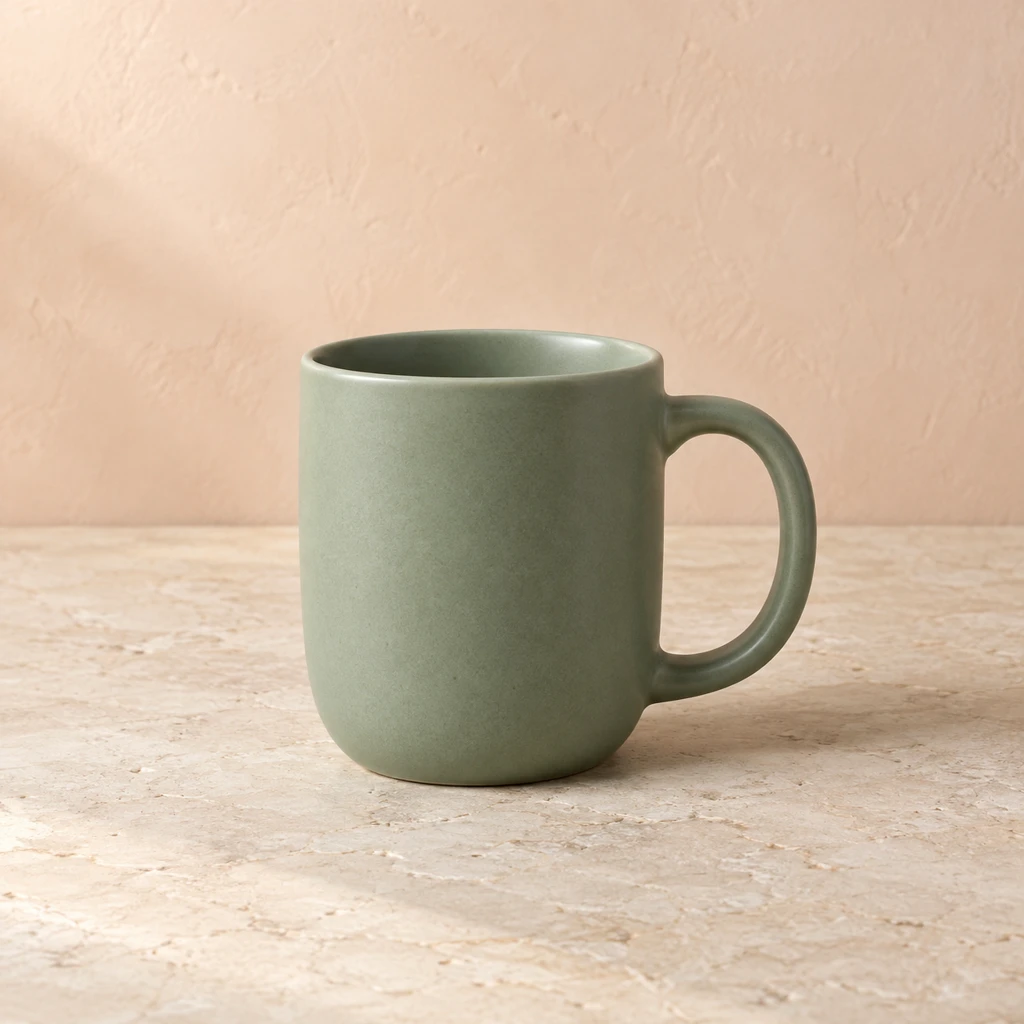
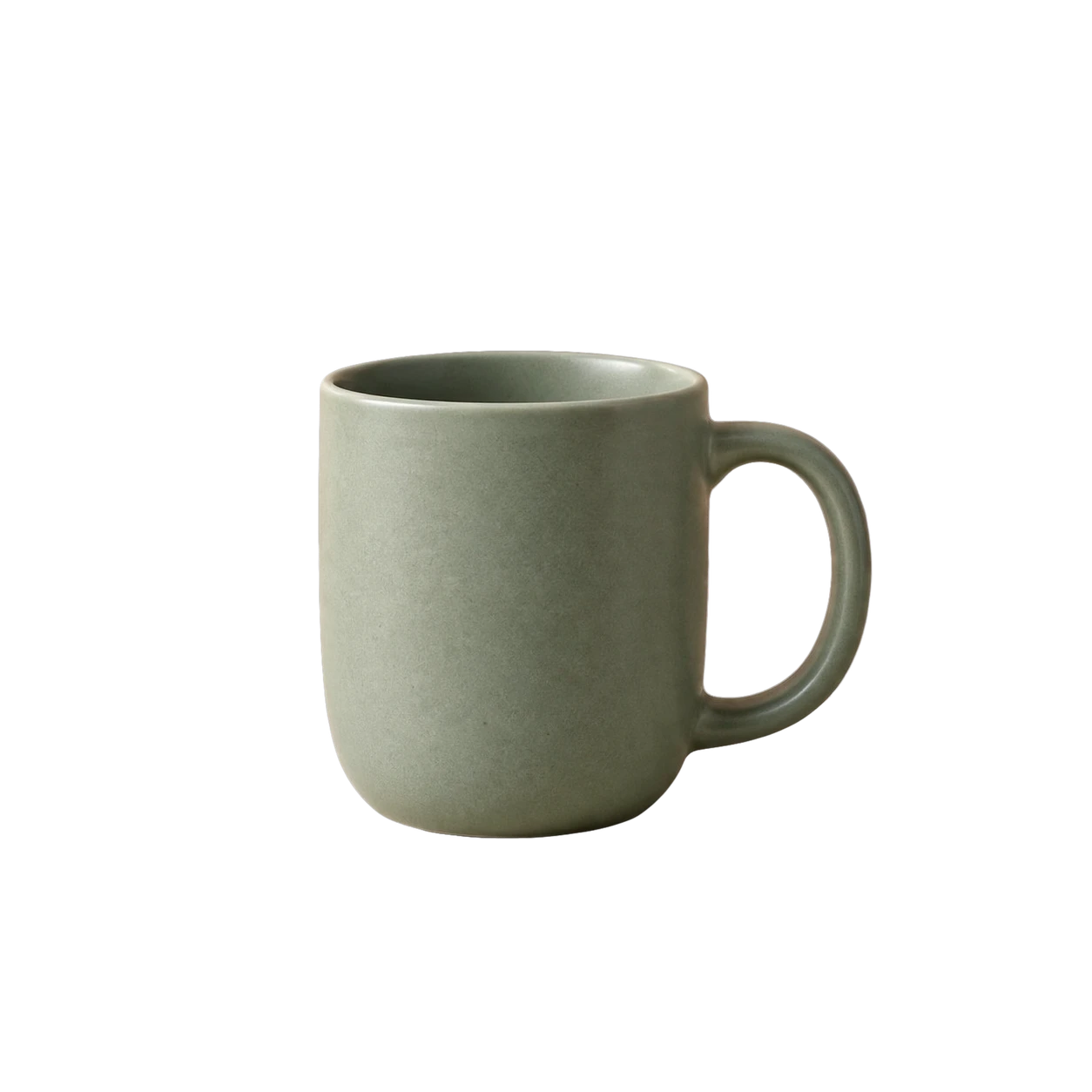
Original example image1 IMAGE
Green ceramic mug on a warm stone surface
Selected layer01 / 02
Product01Product

Saved result from our image-layer workflow, shown here to demonstrate raster layers. This sample was not exported from Canva or Figma.

Bring Canva Designs into Your PSD Workflow

Give an existing design a new use: separate its visible artwork and continue the finishing work in Photoshop.
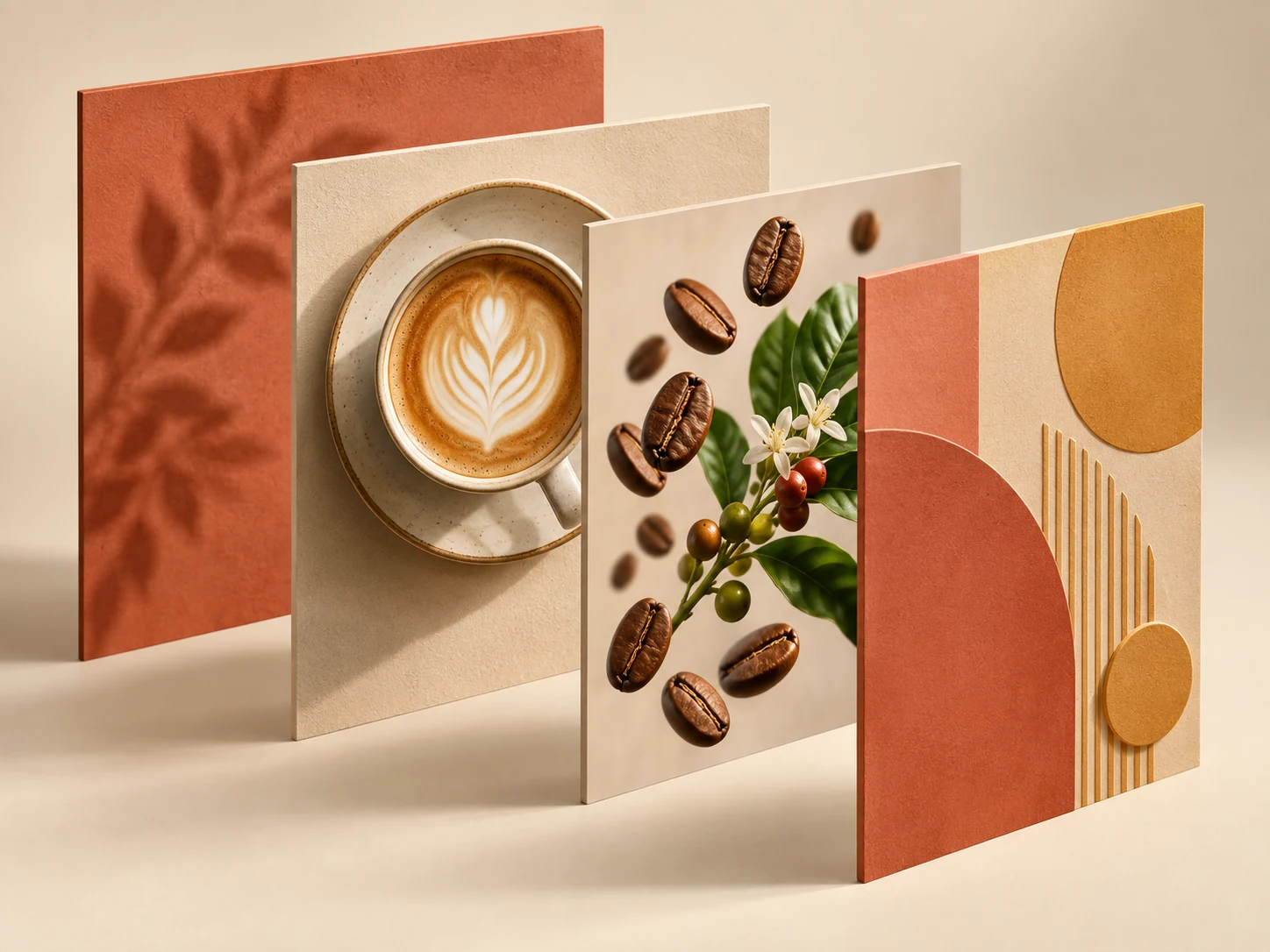
Turn Canva Posters into Layered PSD Artwork

Turn Canva Posters into Layered PSD Artwork

  • Start with a social post, campaign poster or promotional design.
  • Describe the main product and surrounding decorative shapes.
  • Move and retouch the separated raster artwork in Photoshop.
Convert my Canva export
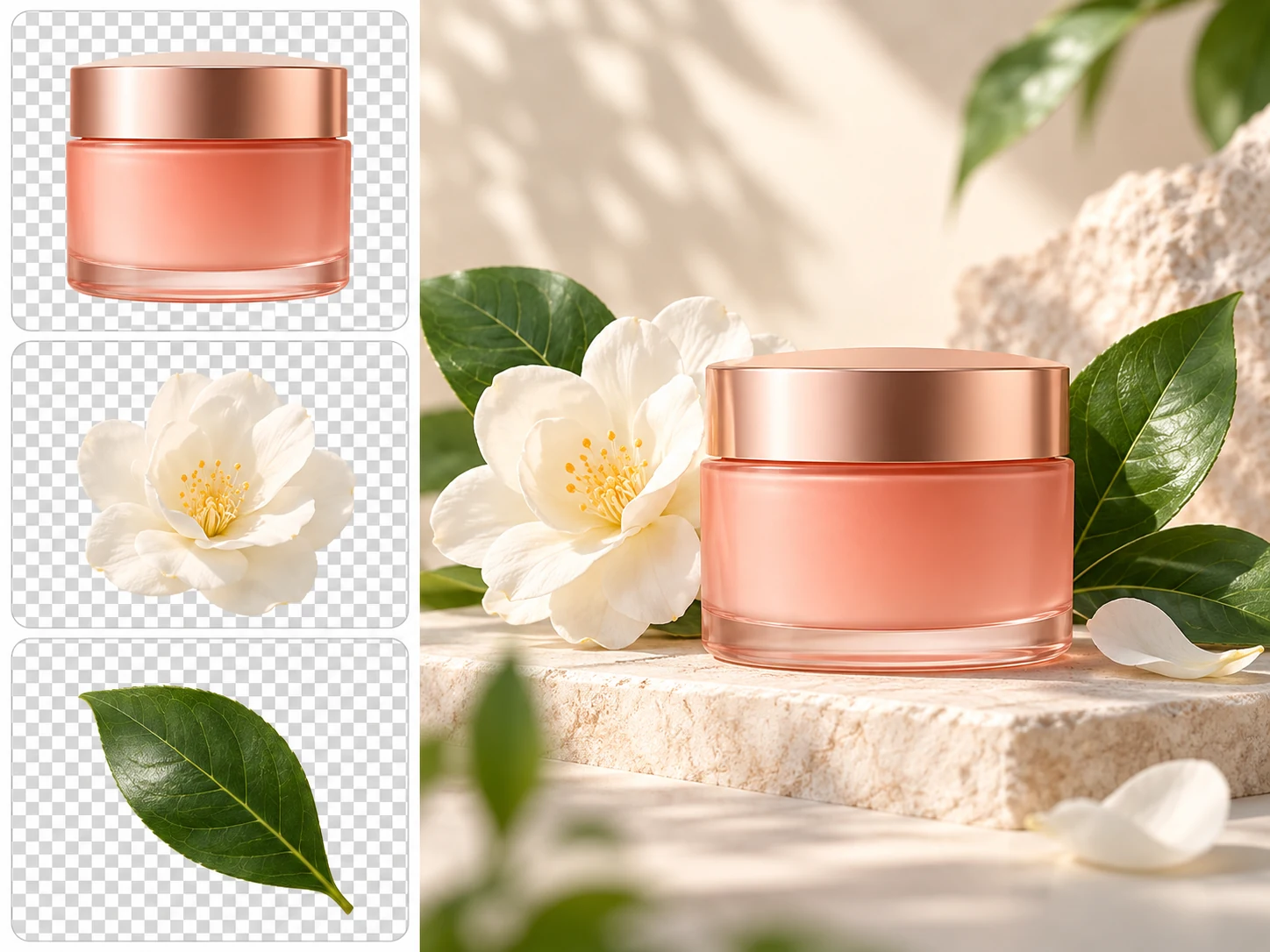
Separate Products and Decorations from Canva Exports

Separate Products and Decorations from Canva Exports

  • Keep a product separate from flowers, props or graphic accents.
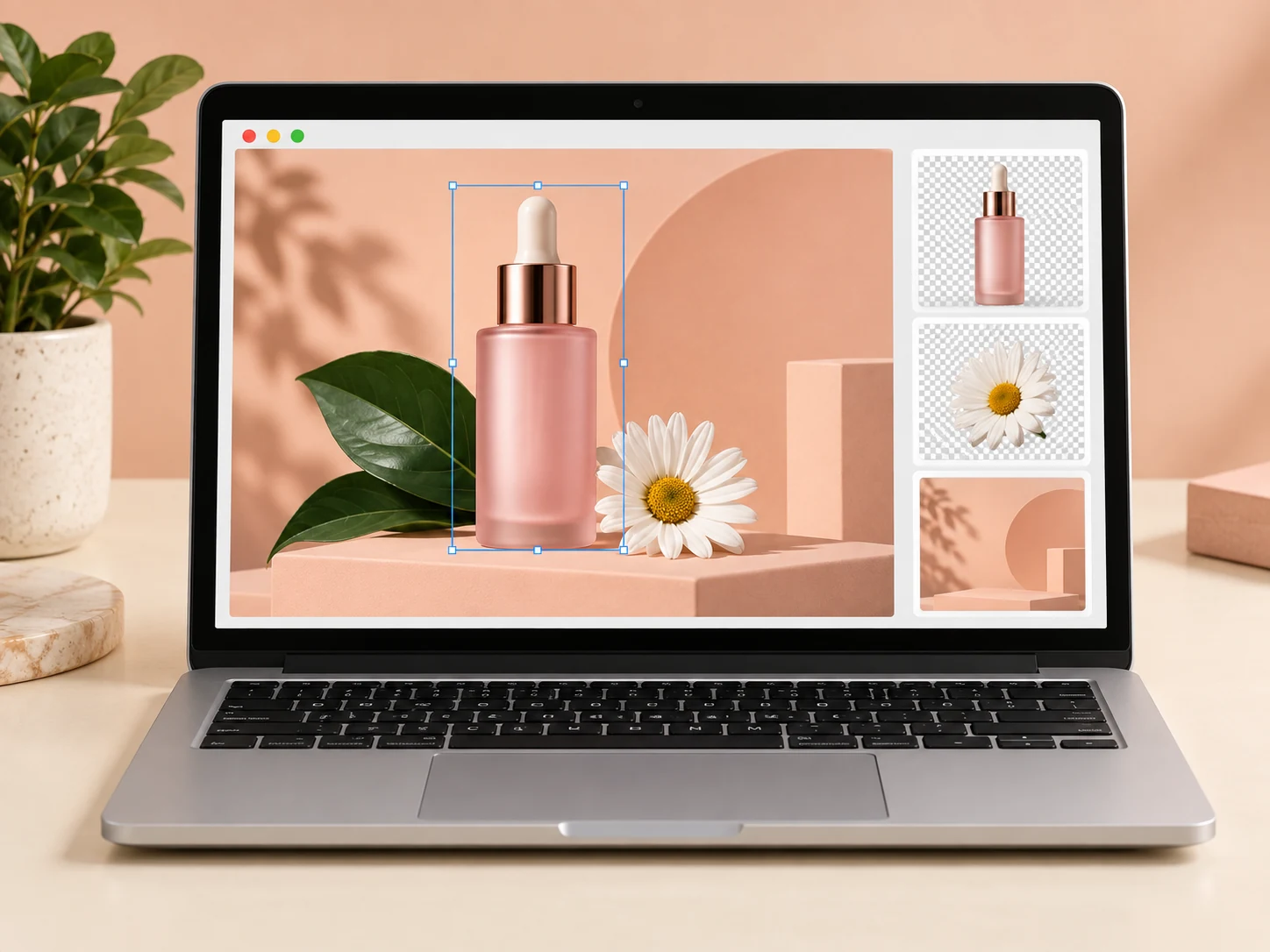
  • Inspect the generated cutouts against a transparent checkerboard.
  • Refine edges before reusing a cutout in another composition.
Convert my Canva export
Prepare Canva Campaign Elements for PSD Editing

Prepare Canva Campaign Elements for PSD Editing

  • Use separation notes to name the product, props and background.
  • Build new arrangements from the separated raster elements.
  • Add fresh Photoshop text when you need different wording.
Convert my Canva export
Preview Canva-to-PSD Layers Before Export

Preview Canva-to-PSD Layers Before Export

  • Inspect individual layer previews before downloading.
  • Check fine edges and reconstructed background areas.
  • Download the PSD and finish your edits in Photoshop.
Convert my Canva export

AI-generated concept illustrations. They demonstrate editing possibilities, not exact converter results.

Common questions
Canva to PSD FAQs

The result contains AI-generated raster layers based on visible image content. It does not recreate the original application document or its native objects.