
Corgi
64 px wide · 16 auto colors
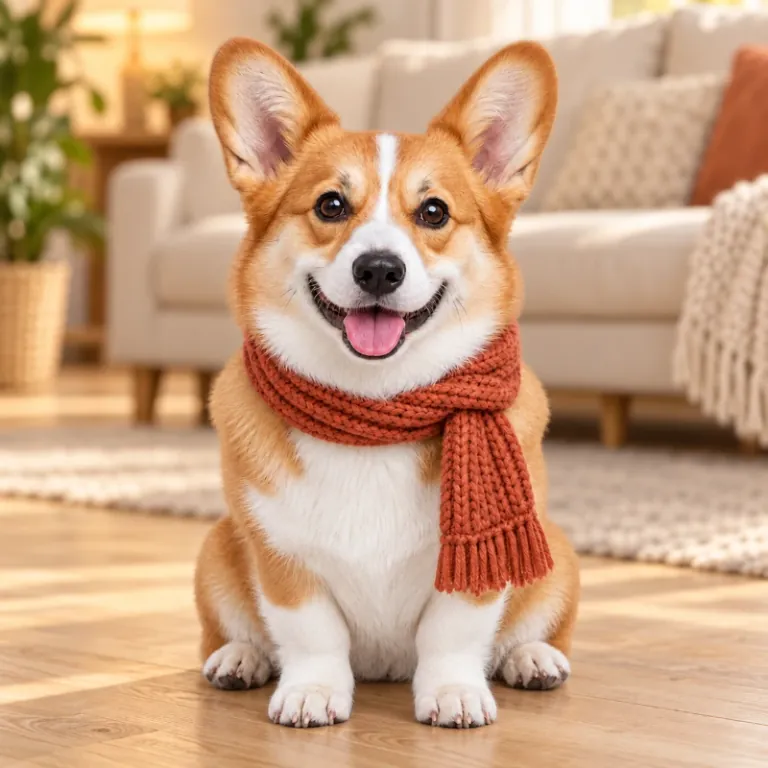
The default settings: 64 pixels wide and 16 colors picked from the photo keep the face, the scarf and the sofa readable.
FREE · RUNS IN YOUR BROWSER
Turn any photo or image into pixel art: choose the grid size, an automatic or retro palette and optional dithering, recolor the swatches you don't like, then download a crisp PNG, a layered PSD with one layer per color, or a printable bead pattern. Free, and your photo never leaves your device.
Free. Your photo is converted on this device and never uploaded.
EXAMPLES
Six photos converted with this tool, each with different settings. Open one to load the photo and its settings into the converter.
64 px wide · 16 auto colors
The default settings: 64 pixels wide and 16 colors picked from the photo keep the face, the scarf and the sofa readable.
48 px wide · Sweetie 16 · Sharp · outline
A transparent cutout with Sharp edges, the Sweetie 16 palette and a dark 1-pixel outline: a game-ready sprite.
64 px wide · Endesga 32
The Endesga 32 palette keeps the strawberries red and the cream bright, with no dithering.
48 px wide · 10 auto colors · Sharp
Ten colors, Sharp edges and a little extra contrast and saturation give a clean, icon-like product shot.
80 px wide · Game Boy · Bayer 4×4 50%
Four Game Boy greens and ordered dithering turn a studio portrait into a handheld-screen photo.
96 px wide · PICO-8 · Floyd–Steinberg 50%
96 pixels wide holds the sea, the flowers and the walker; light dithering softens the PICO-8 colors in the sky and stone.
HOW IT WORKS
Three steps, all in your browser. The preview updates as you change a setting.
Drop, paste or choose a JPG, PNG, WebP or GIF up to 50 MB, or open one of the six samples.
Pick the pixel width, an automatic or retro palette and a dithering style, then click any color to recolor or remove it. Use Compare to check against the photo.
Save a crisp PNG at real size or scaled up to 32×, a layered PSD with one layer per color, the palette as .hex, .gpl or .aco, or a printable bead pattern.
BEAD AND CROSS-STITCH PATTERNS
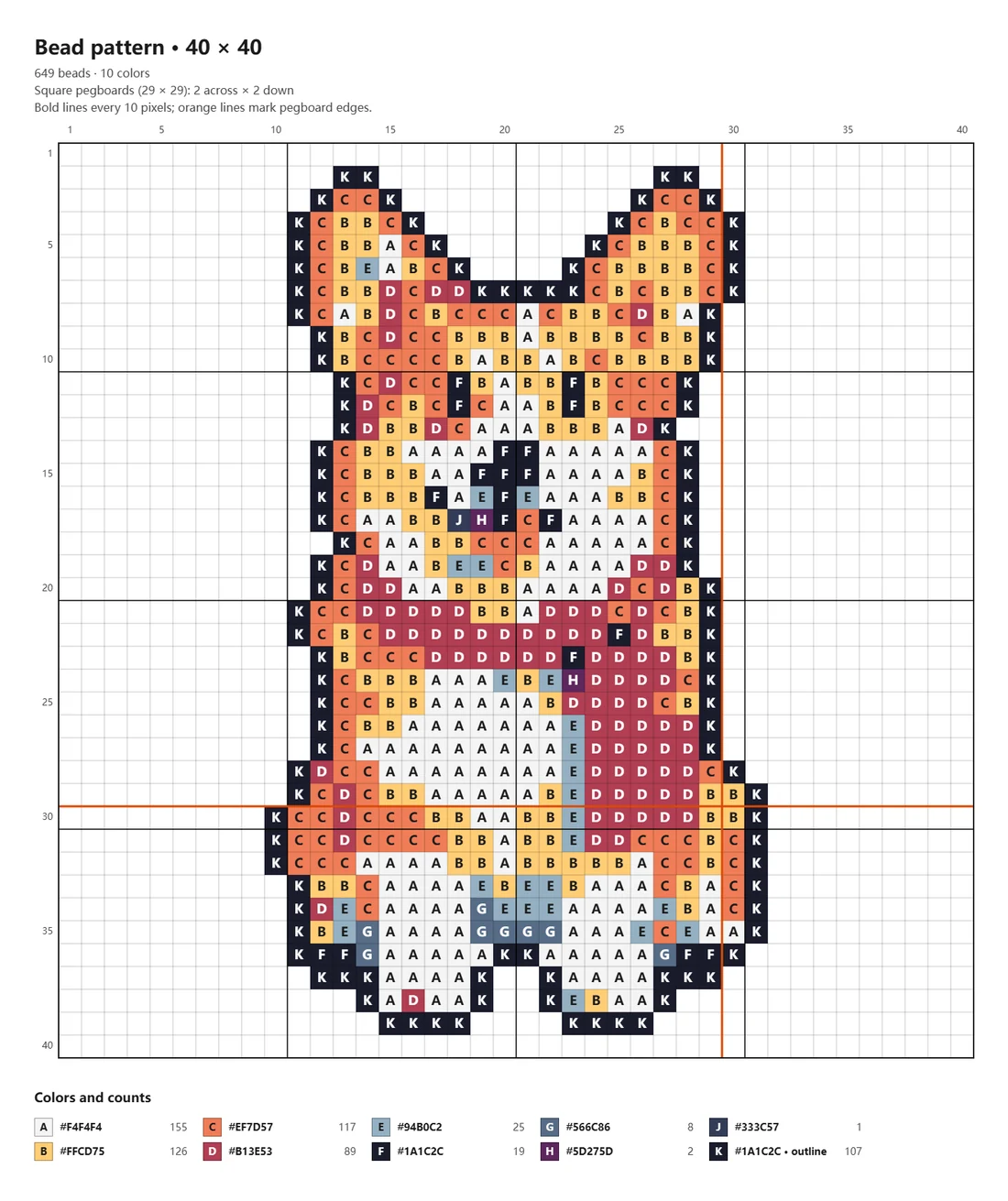
The Bead pattern download is a printable chart of your pixel art. Every pixel is a cell you can count, the rows and columns are numbered, and a legend lists each color with the number of beads or stitches it needs, most used first.

EDIT EVERY COLOR
Each palette color shows how many pixels use it. Click one, or click a pixel in the preview, to change it to any color, merge it into another palette color or remove it to make those pixels transparent. Colors that end up identical are combined, so the files stay clean.
PALETTES
Start with Auto, or lock the picture to a classic console's colors. You can also load your own .hex or .gpl palette, such as one from Lospec.
Picks the colors that best describe your photo, chosen in OKLab so they match how eyes see color. Set anywhere from 2 to 64.
The four greens of the original handheld screen. Matched by brightness, so every photo uses all four shades.
The fixed palette of the PICO-8 fantasy console: bright, saturated and instantly retro.
A common version of the Nintendo Entertainment System's wide but uneven palette.
The Commodore 64's muted, earthy colors in the widely used Pepto version.
Black, cyan, magenta and white: the loudest four colors of early PC games.
The ZX Spectrum's pure primaries in normal and bright intensities.
A popular modern palette for games, with warm skin tones, greens and deep shadows.
A soft modern palette that suits characters, sprites and pastel scenes.
Eight even grays matched by brightness, for a printed or newspaper look.
1-bit art in two colors. Try it with Atkinson or ordered dithering.
The NES, Game Boy and Commodore 64 never had one official set of RGB values; these are the versions most pixel artists use.
GUIDE
What happens to your photo, and how to choose the size, colors and dithering.
The photo is shrunk to a grid: Smooth takes each cell's average color, Sharp its most common one. Auto levels, brightness, contrast and saturation apply next. The colors are then reduced to the palette, matched in OKLab, with optional dithering. Finally every cell is scaled up with nearest neighbor, so it stays a crisp square.
Width shapes the look most. 32 pixels wide is bold and icon-like, 48 to 64 keeps a face or a pet readable, and 96 to 128 holds a whole scene. Sprites and icons are often 16, 32 or 64 pixels square. Crop close to the subject first: every pixel spent on background is detail lost.
Classic hardware had tight limits: 4 shades on the Game Boy, 16 colors on the PICO-8 and Commodore 64. For photos, 8 to 16 automatic colors look hand-made; use 24 to 32 for skin and skies. For beads, fewer colors also means fewer bead colors to buy.
Dithering mixes two palette colors in a pattern to suggest a shade in between. Leave it off for flat, clean sprites. Ordered (Bayer) dithering gives the regular cross-hatch of classic games, Floyd–Steinberg the smoothest gradients and Atkinson more contrast. Lower the strength if it looks noisy.
PNG is lossless, so every block keeps one exact color; JPEG compression adds smudges and stray colors at block edges. Download at 1× for a game engine and scale up by whole numbers for sharing or print, which keeps every pixel square.
Start from a cutout with a transparent background. Transparent areas stay transparent, half-transparent edge pixels become fully solid or fully clear, and the optional 1-pixel outline traces the shape. Need a cutout first? Make one with Photo to Sticker.
USE CASES
Turn reference photos or cutouts into sprites with hard-edged transparency, a 1-pixel outline and a palette you can load into your pixel editor.
A retro portrait of you or your pet for Discord, Twitch or a game profile. Download at 8× or more for a sharp, large image.
Plan fuse-bead projects: 29 pixels wide fits one square pegboard, and the pattern counts the beads of each color.
The numbered grid and symbol legend work as a counted chart: one pixel is one stitch.
Every pixel comes from your photo; nothing is redrawn or invented.
Add a photo to the converter above, pick a pixel width, a palette and a dithering style, then download. The default of 64 pixels wide and 16 colors from the photo works for most pictures.
Yes. It runs entirely in your browser: no sign-up, no credits and no watermark.
No. Your image is read and converted on your own device, in a background worker in the browser. It is never sent to a server.
It depends on the subject. 32 pixels wide gives a bold icon, 48 to 64 keeps a face or pet recognizable, and 96 to 128 holds a scene. Classic sprites are often 16, 32 or 64 pixels square. For a bead project, 29 pixels fits one square pegboard.
Fewer colors look more like pixel art. A Game Boy palette has 4 shades and PICO-8 has 16. For photos, 8 to 16 automatic colors work well; use 24 to 32 for skin tones and skies.
Yes. Set a width that fits your pegboards (29 pixels fits one square board), keep the colors low, then download Bead pattern: a printable chart with numbered rows and columns, symbols for each color and a bead count per color. Match the hex colors to your bead brand yourself.
Yes. The layered PSD puts each palette color on its own layer, named by hex code and pixel count, with the outline on top and, if you like, the original photo as a hidden bottom layer. The .aco palette loads into Photoshop's Swatches panel.
PNG. It is lossless, so each block stays one exact color. JPEG compression smears block edges and adds colors that are not in your palette.
AI image generators can imitate a pixel art style, but their pixels rarely sit on a real grid and the colors drift. This converter keeps your own photo and produces true pixel art: an exact grid, a fixed palette and files you can edit.
PHOTO TO PIXEL ART
Drop a photo, pick a size and palette, and download a PNG, PSD or bead pattern. Free, nothing uploaded.
Convert a photo