Logo preset
Logo to vector
A flat-color logo traced into crisp shapes with sharp corners, ready for print, signs and shirts.
PIXELS IN, CLEAN VECTORS OUT.
Turn a PNG, JPG or logo into a real vector SVG in seconds. Keep 2 to 24 colors or go black and white, clear away stray specks, and download SVG, PDF or DXF for Cricut, laser engraving and print. Your image never leaves your browser.
 01
01 02
02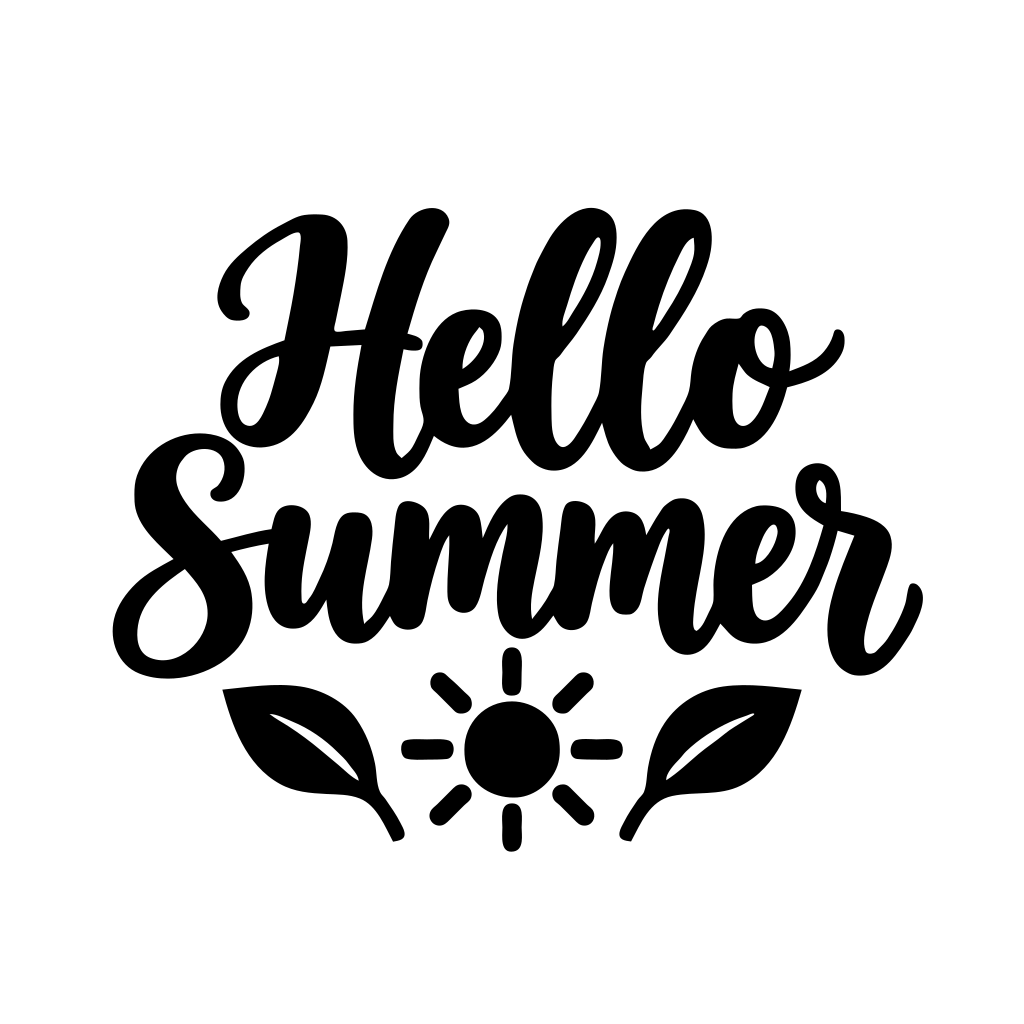 03
03Logos, icons, clip art, lettering or photos. Paste with Ctrl+V works too.
PNG, JPG, WebP, BMP, AVIF · up to 25 MBTRY IT FOR YOURSELF
Each example opens with the preset that suits it. Change the colors or the detail and watch the SVG update.
Logo preset
A flat-color logo traced into crisp shapes with sharp corners, ready for print, signs and shirts.
10 colors
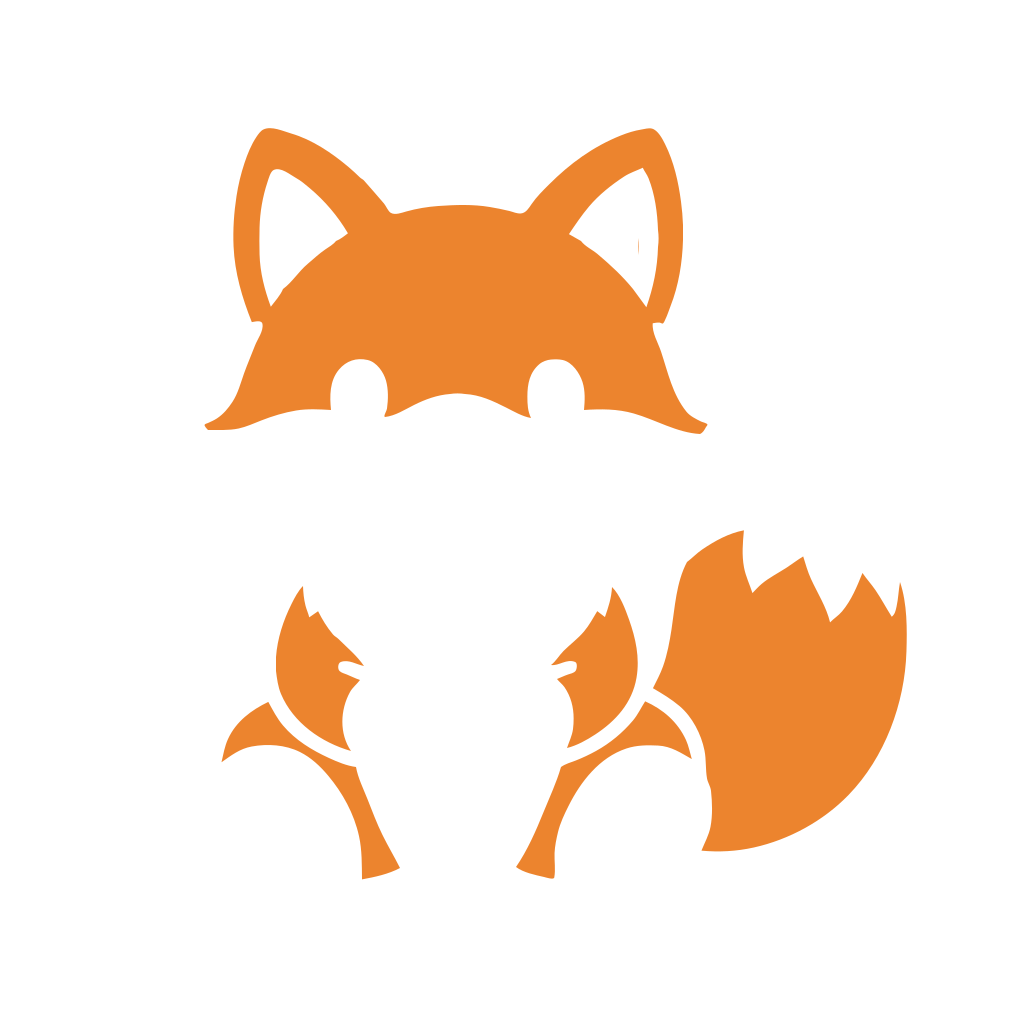
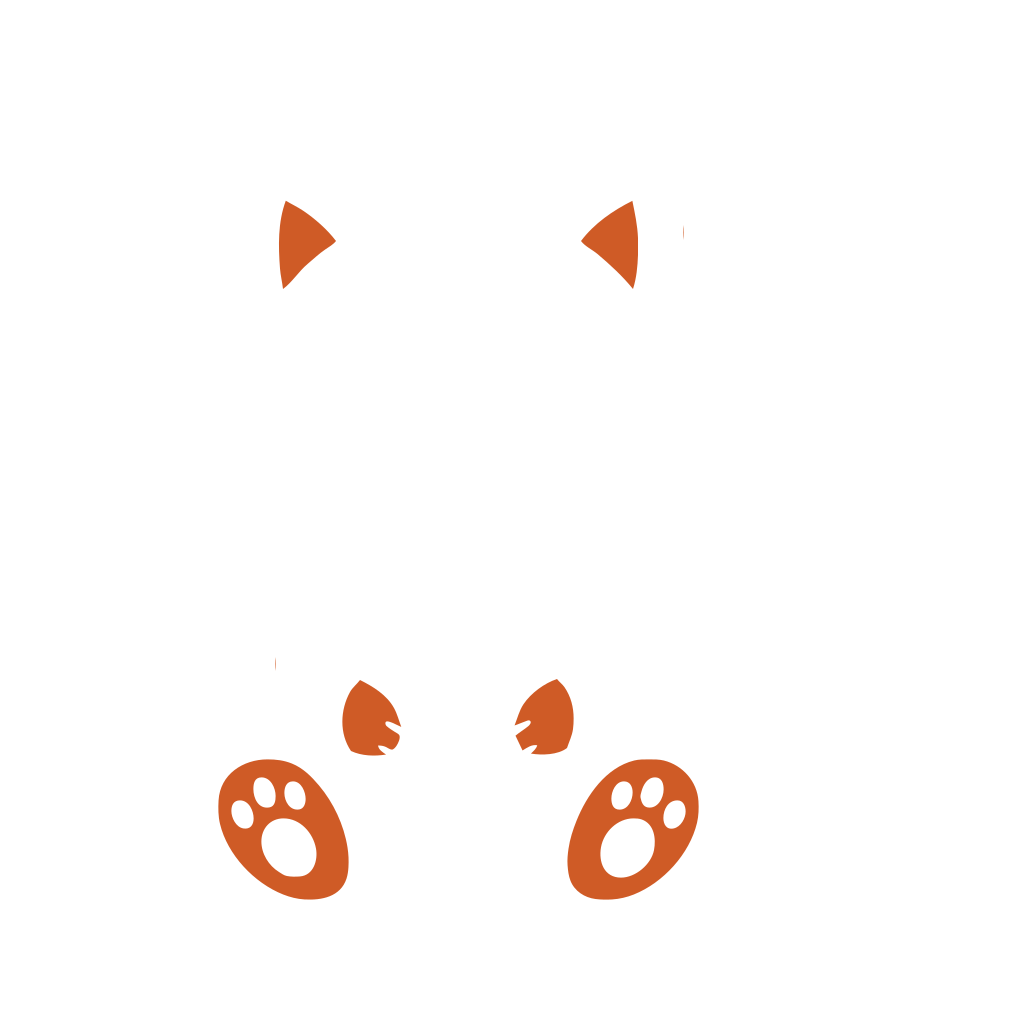
A colorful sticker illustration kept in 10 colors, with the background removed and each color on its own layer.
Black and white
Hand lettering turned into clean black shapes for laser engraving, Cricut or a stencil.


The logo example up close · SVG traced by this tool
SEE THE DIFFERENCE
Every color is traced into smooth vector shapes, with corners kept crisp and curves kept round. Zoom in as far as you like: the SVG edges stay sharp while the PNG breaks into blocks.



MAKE IT YOURS
Every color is saved as its own group, named after its color. In Cricut Design Space, Silhouette Studio, Illustrator or Inkscape, each one shows up as a separate layer you can recolor, hide or cut.
SIDE BY SIDE
The same picture stored as pixels and as vector paths.
| PNG | SVG | |
|---|---|---|
| Made of | A grid of pixels | Shapes drawn with paths |
| When enlarged | Blurs or turns blocky | Stays sharp at any size |
| Changing a color | Repaint the pixels | Change a whole shape at once |
| Cricut and lasers | Needs tracing first | Ready to cut |
| Best for | Photos and screenshots | Logos, icons and cut files |
THREE SIMPLE STEPS
From your original file to a useful result in three simple steps.
Drop, paste or choose a PNG, JPG or WebP. Logos, icons, clip art and hand lettering with clear edges convert best.
Choose a preset or set the number of colors, the detail and the smoothness. Switch to black and white or outline for cut files, and remove the background.
Save the SVG with one group per color, get PDF, DXF and PNG copies, or copy the SVG code.
MADE FOR YOUR NEXT PROJECT
Turn a PNG into an SVG for Cricut Design Space or Silhouette Studio: each color becomes its own layer, ready to cut from vinyl, HTV or card.
Make a black and white SVG or DXF from a picture for LightBurn, Glowforge or xTool, with clean closed outlines and no stray specks.
Convert a logo to vector for signs, shirts and print, or use light SVG icons on a website that stay sharp at every size.
Download a compact SVG with one group per color, a vector PDF for print, a DXF for laser software, a high-resolution PNG, or all of them in one ZIP. Or copy the SVG code straight into your web page.
Upload the PNG, pick a preset such as Logo or Cricut (or set the colors and detail yourself), check the preview, then download the SVG. It takes a few seconds and runs in your browser.
Yes. It is free, with no sign-up, no watermark and no daily limit. Your image is vectorized on your own device and never uploaded.
Yes. Color mode keeps 2 to 24 colors from your image, and each color is saved as its own group in the SVG. Click a color to change it or hide it before you download.
Choose the Cricut preset: it removes the background, keeps a few solid colors and saves each one as a separate shape with no overlaps. Upload the SVG to Cricut Design Space and every color appears as its own layer to cut.
Yes. Use the Laser preset or Black and white mode for clean closed shapes, remove the background, then download SVG or DXF for LightBurn, Glowforge, xTool or Inkscape. Outline mode gives you lines instead of filled areas.
Yes. JPG, PNG, WebP, BMP and AVIF images all work, so it is also a JPG to SVG and image to SVG converter. For JPG photos, raise Denoise to smooth out compression artifacts first.
Yes. The Logo preset keeps sharp corners and flat colors, so the result works for print and signs. Start from the largest, cleanest copy of the logo you have. Text is traced as shapes, not as editable fonts.
A real vector. Some converters only wrap the picture in an SVG file, which still blurs when enlarged. This tool traces the image into paths, so you can scale it, edit the points in Illustrator or Inkscape, and cut it on a machine.
PNG stores a grid of pixels, so it suits photos but blurs or turns blocky when enlarged. SVG stores shapes as paths, so it stays sharp at any size, is usually smaller for logos and icons, and is what cutting machines need.
A photo becomes a poster-like picture made of flat color areas. Use 12 to 24 colors and some Denoise for a painted look, or Outline mode for a line drawing. Logos, icons and illustrations give the cleanest results.
Illustrator has Image Trace and Inkscape has Trace Bitmap, which do a similar job once installed; Canva cannot turn a picture into editable vector paths. This converter needs no software or account, and its SVG opens in all three for further editing.
Yes. Import the SVG into Tinkercad, Fusion 360 or Blender and extrude it into a 3D shape for keychains, signs or cookie cutters. Black and white mode gives the cleanest single outline to extrude.
PNG to SVG Converter
Turn a PNG, JPG or logo into a real vector SVG in seconds. Keep 2 to 24 colors or go black and white, clear away stray specks, and download SVG, PDF or DXF for Cricut, laser engraving and print. Your image never leaves your browser.
Back to the workspace