How to Separate an Image into Layers (Free and with AI)
Separate an image into layers three ways: by hand in Photoshop, free in Photopea or GIMP, or with AI in Image2Layer, which rebuilds the hidden background too.
 Image2Layer Team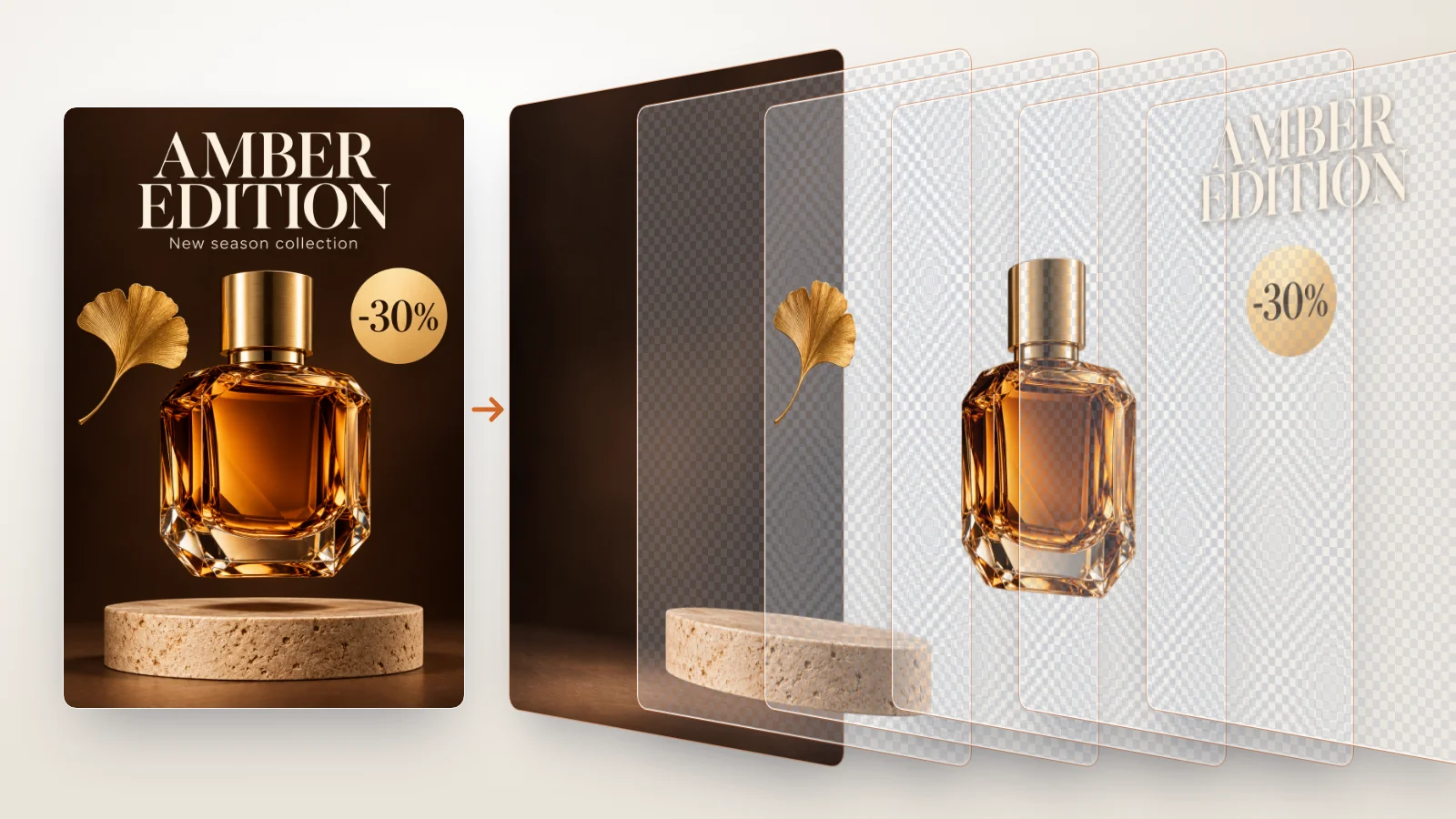
Updated October 2026
To separate an image into layers, you cut each object out onto its own transparent layer and then fill the area it covered, so the background continues behind it. You can do this by hand in Photoshop, for free in Photopea or GIMP, or automatically with an AI image to layers tool that also rebuilds the hidden background.
This guide walks through all three methods, compares them side by side, and ends with tips for cleaner splits. One disclosure: Image2Layer, the AI tool in Method 3, is our product.
What "Separating an Image into Layers" Really Means
A flat JPG or PNG stores one grid of pixels. Nothing in the file says where the person ends and the beach begins. Separating it into layers means creating that information: one layer per object, each with its own transparency, stacked on a shared canvas.
There are two halves to the job, and most tutorials only cover the first:
- Cutting out the objects. Each object goes onto its own layer with a clean edge.
- Rebuilding what was behind them. When you lift an object out, the background has a hole in its shape. If you move or delete the object, that hole shows.
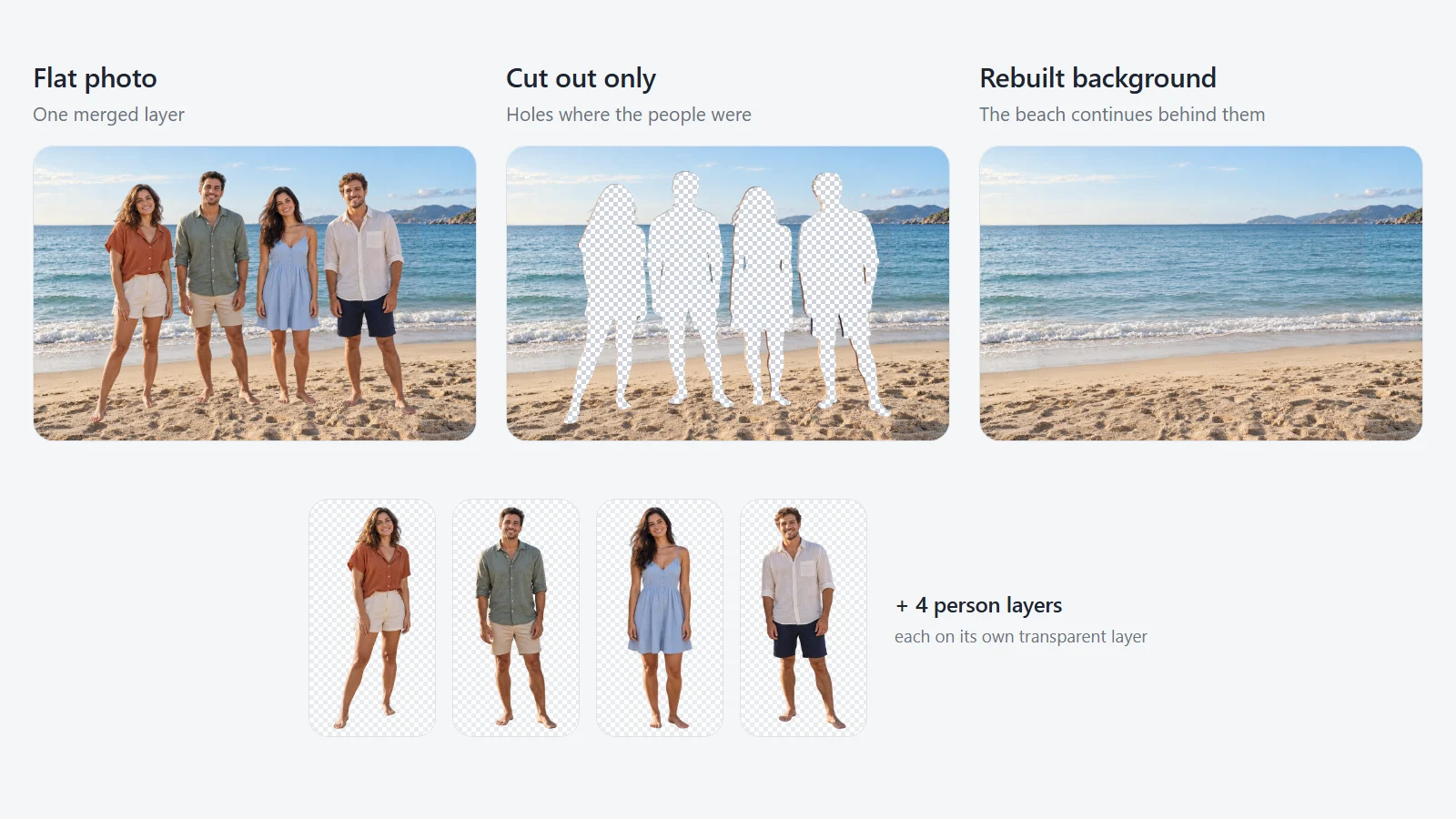
A real Image2Layer result. The middle panel shows what a cut-out alone leaves behind, made by punching the four returned person layers out of the original photo. The right panel is the rebuilt background layer from the same run.
A cut-out without the rebuilt background is fine if you only need the subject on a new backdrop. If you want to move the subject, swap it, or edit the scene around it, you need both halves.
Method 1: Separate an Image into Layers in Photoshop
Photoshop gives you the most control, and its AI-assisted selections make the cut-out fast for clear subjects.
- Open the image and unlock it. Open the JPG or PNG. If the Layers panel shows a locked Background layer, click the lock icon to turn it into a normal layer.
- Select the first object. Use Select > Subject for the main subject, or the Object Selection Tool and drag a box around a specific object. For hair, fur and soft edges, refine the selection with Select > Select and Mask.
- Move it to its own layer. Choose Layer > New > Layer via Cut (Shift+Ctrl+J on Windows, Shift+Cmd+J on Mac). The object moves to a new layer and leaves a transparent hole in the original.
- Fill the hole. Select the original layer, load the hole as a selection (Ctrl/Cmd-click the new layer's thumbnail), expand it by a few pixels with Select > Modify > Expand, then use Edit > Content-Aware Fill or Generative Fill in the Contextual Task Bar. Generative Fill uses Adobe generative credits.
- Repeat for every object, working from the front of the scene to the back, and name each layer as you go.
- Save as PSD with File > Save As, and choose Photoshop as the format.
Photoshop is the right choice when an edge must be pixel-perfect or the object is something AI tends to struggle with. The cost is time: every object is a separate round of selecting, refining and filling, and Photoshop itself is a paid subscription.
Method 2: Separate an Image into Layers for Free in Photopea or GIMP
If you do not have Photoshop, two free editors can do the same job by hand.
Photopea (free, in the browser)
Photopea works in the browser and follows Photoshop's menus closely, so the workflow above carries over:
- Open the image at photopea.com (File > Open).
- Select an object with the Quick Selection, Magic Wand or Lasso tool, and refine the edge with Select > Refine Edge.
- Choose Layer > New > Layer via Cut to move it onto its own layer.
- Repair the hole in the background layer with the Spot Healing Brush, Healing Brush or Clone Stamp.
- Export a layered file with File > Save as PSD.
Photopea is free with ads; a paid tier removes them.
GIMP (free, desktop)
GIMP is a free, open-source editor for Windows, macOS and Linux:
- Open the image and add an alpha channel (Layer > Transparency > Add Alpha Channel).
- Select the object with the Foreground Select tool, the Fuzzy Select tool or the Paths tool.
- Cut it with Edit > Cut, then choose Edit > Paste as > New Layer to place it on its own layer.
- Fill the hole with the Heal or Clone tool. For larger holes, the free Resynthesizer plug-in adds a Heal Selection filter that fills them automatically (check that it supports your GIMP version).
- Export with File > Export As and a
.psdfile name to keep the layers.
Both editors are capable but slower than Photoshop for this task, because the selection and background repair are almost entirely manual.
Method 3: Separate an Image into Layers Automatically with AI
An AI image to layers tool does both halves of the job in one pass: it finds the objects, cuts each one onto its own layer and rebuilds the background behind them. Here is how it works in Image2Layer:
- Upload your image. JPG, PNG or WebP, up to 24 MB and at least 512 × 512 pixels.
- Choose how to split it. Leave the layer count on Auto, or pick a number from 2 to 10. To lift out just one thing, such as a product, a logo or a person, use Targeted Layer and describe it. You can add a short note too, for example "keep the logo separate".
- Wait about 1 to 2 minutes. Each object comes back as a named, transparent layer, plus a rebuilt background layer with the hidden areas filled in.
- Review and download. Check the layers, switch off any you do not need, then download a layered PSD, transparent PNG layers or a ZIP of everything.
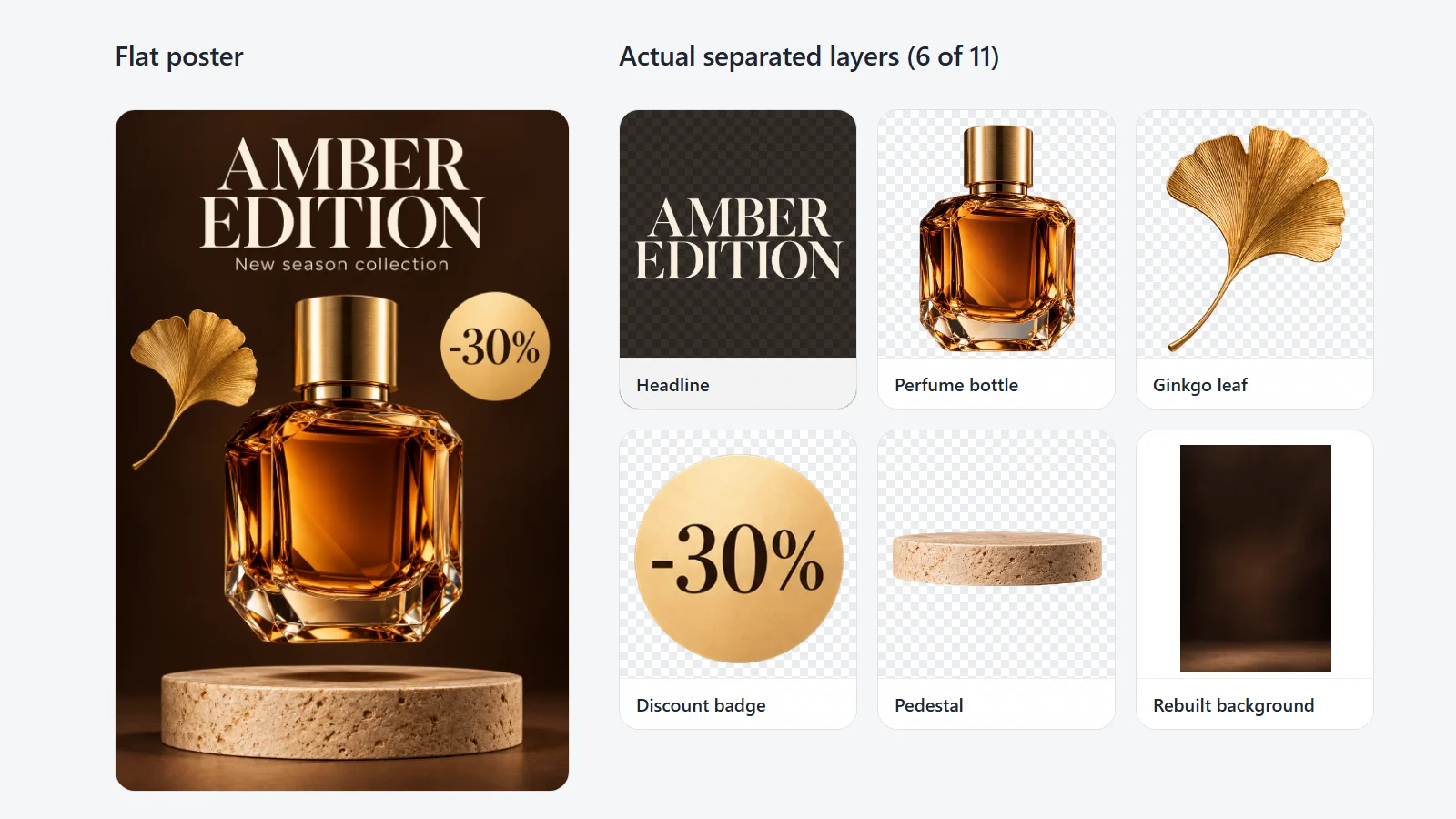
One flat poster and six of the eleven layers returned in a single run. The headline is shown on a dark tile because its cream lettering disappears on white.
If your goal is a Photoshop file, Image to PSD runs the same separation and puts the PSD first. For photos with several people or objects, Separate Image into Layers is the same tool with examples for that use, and Character to Layers is tuned for character art you want to rig or animate.
The trade-off is control. AI separation is fast and handles the background for you, but on soft edges such as hair, glass or smoke it can need a manual tidy-up afterwards, which you can do on the exported PSD in any editor.
The Three Methods Compared
| AI in Image2Layer | By hand in Photoshop | By hand in Photopea or GIMP | |
|---|---|---|---|
| Time per image | About 1 to 2 minutes for the whole image | Several minutes per object, more for hair and busy scenes | Longer than Photoshop, with fewer automatic tools |
| Skill needed | None: upload and pick a layer count | Selections, masks and fills | Selections plus manual healing and cloning |
| Hidden background | Rebuilt automatically as its own layer | Content-Aware Fill or Generative Fill, object by object | Painted back by hand |
| Output | Layered PSD, transparent PNG layers or ZIP | Layered PSD | Layered PSD |
| Cost | Free trial, then packs from $3.99 with no subscription (8 credits per layer) | Adobe subscription | Free |
| Best for | Posters, product shots, group photos, AI art and character art you need as layers quickly | One hero image where every edge must be perfect | Occasional simple images on a zero budget |
In practice the methods combine well: let AI make the layers and rebuild the background, then open the PSD in Photoshop, Photopea or GIMP to polish the one or two edges that matter most.
Tips for Cleaner Layer Separation
Whichever method you use, the source image decides most of the result:
- Start from the best original you have. Low-resolution files and heavy JPEG compression blur the boundaries between objects.
- Expect soft edges to need care. Hair, fur, glass, smoke and motion blur hide the line between one layer and the next. Check these edges against both a light and a dark background.
- Watch for objects that share a color with their background. A white product on a white wall separates less cleanly than one with contrast.
- Do not split more than you need. Tiny fragments add cleanup work. Ask for the layers your next edit actually uses; our guide to choosing the right layer count explains how.
- Treat tiny text and busy collages as a starting point. They usually need a manual tidy-up after export.
- Verify the file, not the preview. Open the PSD, hide one layer and move another to confirm they really are independent.
Related Guides and Tools
- Image to layered PSD tools compared puts Image2Layer, LayerPSD, Image Layered, Canva Magic Layers, Photoshop and Photopea side by side on price and features.
- How to turn a flat image into a layered PSD covers the PSD side in depth, including how to check the exported file.
- Image layer separation vs background removal explains when a simple cut-out is enough.
- Open a PSD file without Photoshop shows free ways to view and edit the result.
- Try it on your own picture with Image to Layers, see current prices on the pricing page, or browse every free and AI tool in all tools.
FAQ About Separating an Image into Layers
Can I separate an image into layers for free?
Yes. You can do it by hand for free in Photopea, which runs in the browser, or in GIMP, which you install. Both take longer than an AI tool because you select each object and repair the background yourself. Image2Layer also offers a free image to layers trial, so you can see an AI split of your own picture before paying.
How do I separate an image into layers without Photoshop?
Use an online image to layers tool such as Image2Layer: upload a JPG, PNG or WebP, leave the layer count on Auto or choose 2 to 10 layers, and download a layered PSD, transparent PNG layers or a ZIP. You do not need Photoshop to make the layers, and the PSD opens in Photopea, GIMP and Affinity Photo as well as Photoshop.
Can I turn a JPG or PNG into a layered PSD?
Yes, but only after its contents are separated. Saving a JPG or PNG as a PSD gives you one layer that still holds the whole picture. Separate the objects first, by hand or with AI, then export the PSD.
What happens to the background behind an object I cut out?
A plain cut-out leaves a hole in the background. In Photoshop you fill it with Content-Aware Fill or Generative Fill, in Photopea or GIMP with healing and cloning tools. Image2Layer rebuilds the hidden area automatically and delivers it as its own background layer.
How many layers can one image be split into?
By hand, as many as you have time to cut. Image2Layer makes up to 10 layers per run on Auto or a number you pick, and Targeted Layer pulls out a single object you describe. Most images need only a handful of layers, and you can split a layer again if it needs more.
Does the text in my image become editable text?
No. Lettering is separated as a raster layer you can move, recolor or delete, but it is not live type with the original font. To change the words, retype them with a text tool on a new layer.
How much does AI image layer separation cost on Image2Layer?
There is a free image to layers trial. After that, each layer costs 8 credits. Credit packs start at $3.99 with no subscription, about 6 to 8 cents per layer, and monthly plans start at $7.99. Failed jobs never use credits.
Try Image2Layer with your own image
Upload a JPG, PNG, or WebP image and export editable layers, transparent PNG assets, or a layered PSD.
Open Image2Layer