Brush for exact control
Paint over the thing to remove, switch to the Eraser to take part of a stroke back, and set the Size for thin poles or wide cars. Only what you paint is removed.
AI object eraser
Image2Layer's object remover turns a photo with an unwanted person or thing into a clean picture, free to try. Brush over it or describe it in words, and AI rebuilds the background in about 30 seconds.
1. Upload an image
Sexual or explicit content isn't allowed. Images and results that contain it are blocked automatically.
No image handy? See a sample
2. Mark what to remove
Brush for exact control, or name the thing to remove.
Upload a photo, then paint over what to remove.
3. Remove Object
10 credits per photo · Failed runs never use credits


What it removes
An object remover takes something out of a photo and fills the gap with what would be behind it. Paint over the thing with the brush, or type what it is, and the AI rebuilds the ground, the wall or the sky to match the light, texture and perspective around it.
Use it to remove people from photos, clear cars and signs from a street, or tidy a room before a listing. To put something new in the empty spot, use generative fill. To split the clean picture into editable layers, use image to layers.

 BeforeRemoved
Two ways to remove unwanted things from a photo, and a background that matches.
Paint over the thing to remove, switch to the Eraser to take part of a stroke back, and set the Size for thin poles or wide cars. Only what you paint is removed.
Switch to Describe and type what should go, such as "the man in the red jacket". The AI finds it by itself, a quick way to remove people from photos of busy scenes.
The gap is filled with what would be behind the object, with matching light, texture and perspective, so the photo looks as if it was taken without it.
Upload, mark what to remove and press Remove Object. Most runs finish in about half a minute, and Recent edits lists your past results.
Brush with your finger in the phone browser, or type a description. There is no object remover app to install.
Each photo costs 10 credits in either mode. No subscription is needed, and a run that fails never uses credits.
How to remove an object from an image online: upload it, mark what should go, download the clean PNG.

Three examples: watch the brush, drag the divider, compare the close-ups.

 Brush the area
Keep Brush selected and paint over the thing to remove, here a lifebuoy on a post at the start of a pier. The painted lifebuoy is removed and the post and the water behind it are rebuilt, while the rest of the photo stays the same. The object remover brush suits thin poles, one person in a group, or anything that is hard to name.
Brush an object away
 BeforeRemoved
Switch to Describe and type who should go, such as "the tourists behind her". The AI finds them, removes them and rebuilds the arches and the street behind, while she stays in the picture. It is a quick way to remove tourists from photos of a busy place. Drag the divider to compare.
Remove people from a photo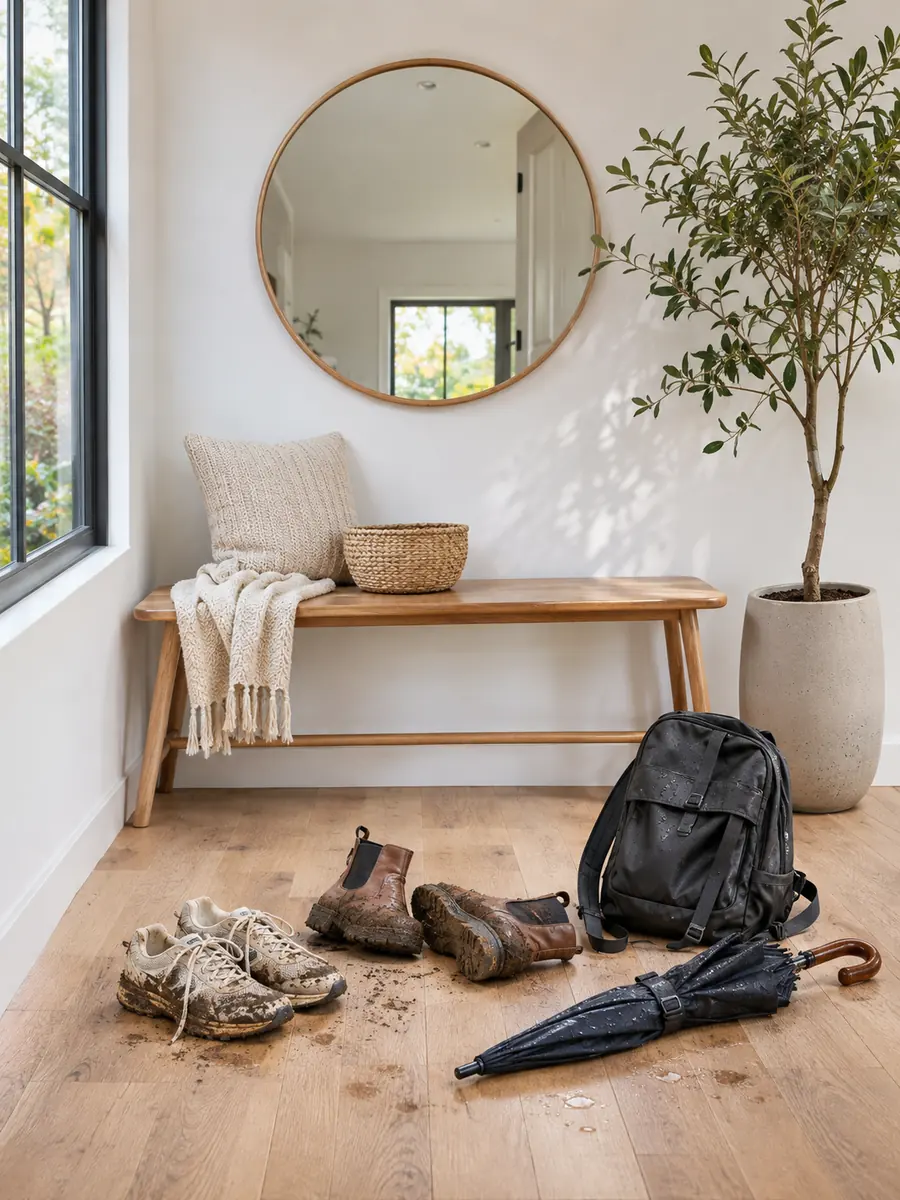
 After
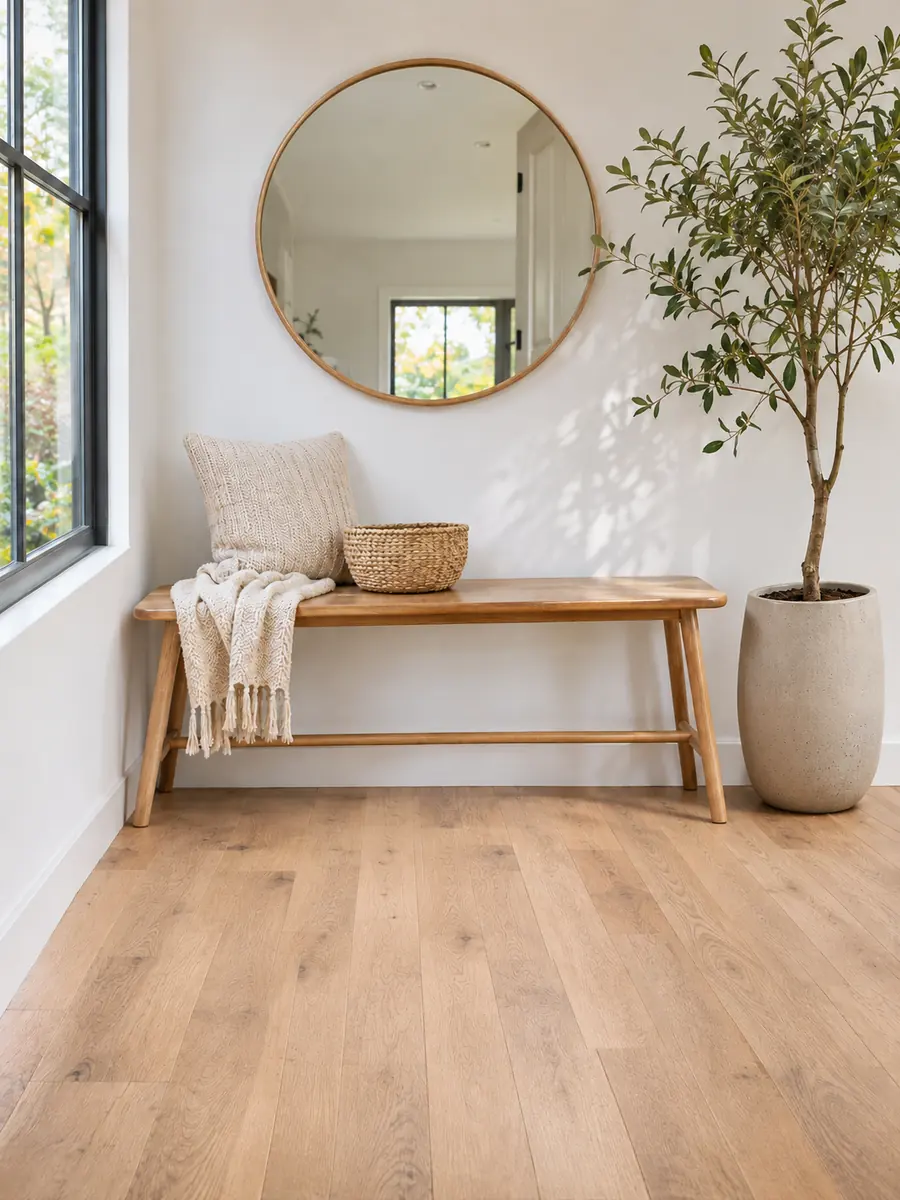
For a listing, name every item in one line: "the shoes, the backpack and the umbrella on the floor". One run clears them and continues the floorboards, while the bench, the mirror and the plant stay. In Describe mode small details elsewhere can shift a little, so compare the close-ups before you post. For captions and date stamps, use remove text from image.
Tidy a photoSix photos made for these examples, each cleaned in one Describe run with the words shown when you open it. Hover a card to wipe between the two, or open it to compare closely.
A wedding guest holding up a phone behind the couple is gone, and the hedge and string lights carry on behind them.
A hair tie and a cotton pad cleared from beside a skincare jar, with the marble continued underneath.
Three cones and a barrier cleared from a quiet old town street, with the cobblestones running on.
Wooden poles and their wires removed from a desert road at sunset, leaving open sky and sand.
The dish rack, sponges and soap bottle cleared for a rental listing, with the counter and tiles rebuilt.
A tangled hose and a bucket gone from the lawn, while the dog keeps its pose.
Four habits that leave no trace behind.
In Brush mode, cover the whole object plus a small margin, and include its shadow and any reflection. A tight outline can leave a faint halo around the spot.
Turn the Size down for wires and thin poles, and up for a car or a group of people. Undo takes back the last stroke, and Clear starts over.
In Describe mode, say what it is, its color and where it is: "the woman in the blue coat on the left". List several things in one line to remove unwanted objects in one run.
Compare with the slider. If a trace is left, press Edit the result and brush over it. When nothing else may change, use Brush, since Describe can shift small details.
Image2Layer next to two other ways to remove objects from images: Photoshop by hand and a retoucher.
Photoshop is a trademark of Adobe. Image2Layer is not affiliated with Adobe or with any retouching service.
Travelers, sellers, families and anyone with a nearly perfect photo.
Remove tourists from photos of a square, a beach or a viewpoint, so the place looks the way you remember it.
Remove clutter from photos of rooms and gardens, from bins and cables to a car in the driveway, before the listing goes live.
Remove objects from images of your products, such as stickers, tags and stray props, then set the product on a clean white background.
Remove a photobomber from a photo of the couple, or a guest who stepped into the frame at the wrong moment.
Remove people from photo backgrounds in a selfie or a café shot before you post it.
Clean up a photo first, then turn it into editable layers with image to PSD for a poster or a collage.
Answers about brushing, describing, price, size and privacy.
More image tools for the next step with your clean photo.
Four tools for what usually comes next.
Brush or describe
Upload a photo, brush or describe what should go, and download a clean PNG in about 30 seconds. The object remover starts free with an account.
Remove an object